To compare large text files online, use a browser-based tool only within its documented limits, or stream files with a local command-line tool such as diff -u. TextCompareo's main text comparison has a 300 MB combined-input limit. Actual performance depends on the file structure, how different the versions are, your browser, and available device memory.
Table of Contents
Why Large Files Can Slow Browser Tabs
Have you ever tried pasting two large server logs or SQL database dumps into an online diff checker, only to watch your browser tab lock up with an "Aw, Snap! Out of Memory" crash?
The file size on disk is not the same as the memory a browser needs while reading, splitting, comparing, and rendering it. Chrome, Edge, Safari, and different devices can behave differently. Large inputs can use substantially more memory than their raw size:
- Text representation: browsers can create temporary string copies while reading and normalising text. The exact overhead varies by browser and encoding.
- Line and result data: splitting text into lines and storing diff results adds metadata and memory beyond the original file size.
- Diff complexity: comparison cost varies with the number of lines and how much the versions differ. Some comparisons require substantially more CPU or memory than others.
- Rendering: a very large result can put pressure on the browser even after the diff calculation finishes.
Many web and desktop tools set file-size or workload limits to manage browser and server resources. Those limits change over time, so check each product's current documentation rather than relying on a comparison chart.
Choosing a Tool for Large Files
There is no universal benchmark for a large-file comparison. Results depend on the versions being compared, the algorithm, browser version, available memory, and device. Use the workflow that fits the file size and your organisation's data-handling rules.
| Approach | Appropriate when | What to verify |
|---|---|---|
| Browser-based text comparison | Two supported inputs totalling no more than 300 MB, where a browser workflow is allowed. | Available memory, input complexity, format support, and whether browser use is permitted for the data. |
| Desktop diff application | Files above a browser tool's limit, or work that must remain in an approved local environment. | The application's current limits, local disk and memory, and your organisation's installation policy. |
| Command-line tools | Large logs, exports, automation, or remote-system work where a terminal workflow is available. | Command syntax, output size, and whether the comparison has to be streamed or chunked. |
| Chunking or pre-filtering | The file is too large or too noisy for a direct comparison. | That chunks preserve order and boundaries, and that the filtered result still answers the review question. |
Key takeaway: A browser comparison is useful for supported inputs within its limit. For files above 300 MB, data subject to strict policy, or workloads that strain the device, use an approved desktop or command-line workflow instead.
Use DevTools to Check the Workload
Never take a software tool's large-file or privacy claims at face value. Test with non-sensitive sample data in Google Chrome or Microsoft Edge before using a browser workflow for real work:
- Open TextCompareo.com in your browser.
- Press Shift + Esc on your keyboard to open the Chrome Task Manager (or press F12 and navigate to the Memory tab).
- Locate the tab named "TextCompareo" and note its baseline resource use on your device.
- Compare two harmless sample files that remain within the 300 MB combined-input limit.
- Check the Task Manager again. If the tab becomes slow or memory use is impractical, switch to a local desktop or command-line workflow.
- Switch to the Network tab (F12 → Network) and run the sample comparison again. Confirm that no request carries the sample content; requests for page assets or analytics can still appear.
Four Ways to Compare Large Files
Method 1: Browser-Based Comparison for Supported Inputs
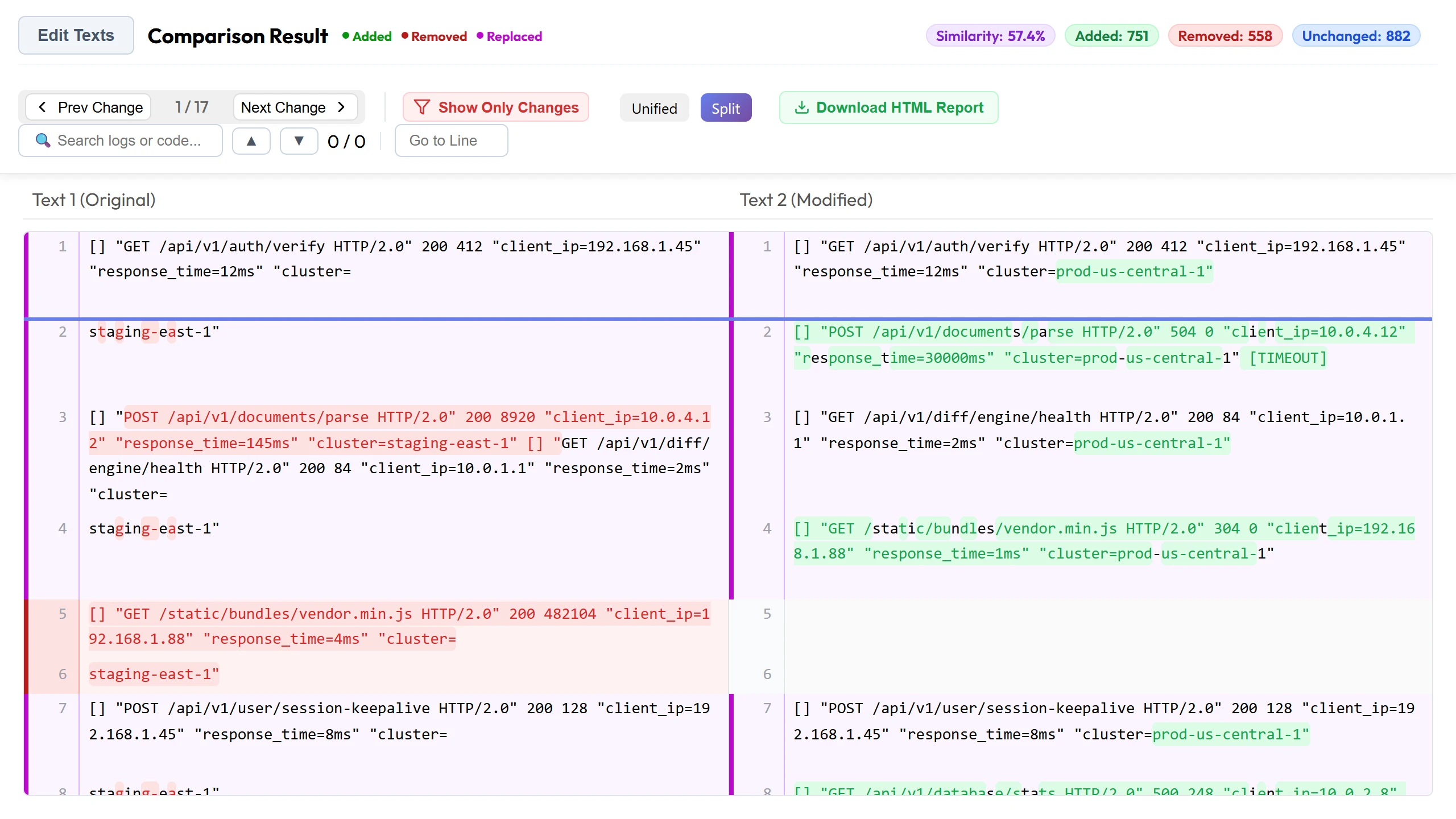
If you need to compare two supported inputs within the 300 MB combined-input limit without installing command-line tools, open TextCompareo.
TextCompareo processes the comparison in your browser. Memory use and responsiveness depend on the format, file size, line count, degree of change, browser, and device; a 300 MB limit is not a performance guarantee. If the comparison becomes impractical, use a desktop or command-line tool.
The result can help you review additions, removals, and changed text side by side. Verify important results against the source files before making a decision.
Method 2: Command-Line Comparison with diff -u or sdiff
For large logs or exports, command-line tools avoid browser rendering and can be practical over SSH. They are not memory-free: resource use depends on the utility, algorithm, input structure, and amount of change.
# Unified diff output directly in terminal
diff -u server_log_staging.log server_log_prod.log > changes.diff

# Side-by-side column diff ignoring whitespace changes
sdiff -s -w 160 original_dump.sql updated_dump.sql | head -n 100
Terminal tools avoid rendering a browser interface and are often a better fit for very large exports or SSH workflows. Resource use still depends on the utility, its algorithm, and the amount of change in the files, so test the chosen command on representative non-sensitive data first.
Method 3: Chunking Massive Files with split -l
For a very large monolithic log, splitting both versions at the same stable boundaries can make review more manageable. Boundary shifts can hide or duplicate context, so validate relevant neighbouring chunks. The standard split utility can create line-based chunks:
# Split both files into 10,000-line chunks
split -l 10000 access_aug.log chunk_aug_
split -l 10000 access_sep.log chunk_sep_

# Compare corresponding chunks sequentially
diff -u chunk_aug_aa chunk_sep_aa
Chunking can reduce the amount processed at one time, although comparisons near chunk boundaries need extra care. Once you identify a relevant chunk, you can paste that non-sensitive section into TextCompareo for visual inspection.
Method 4: Hash-First Line Filtering for Fast Triage
Often in large datasets (such as CSV customer lists or transaction ledgers), you only care about which unique entries were added or removed, regardless of their position in the file.
Instead of computing an expensive positional diff, extract and sort unique keys, or compare line hashes:
# Extract and sort unique records from both datasets
sort file_v1.csv | uniq > sorted_v1.txt
sort file_v2.csv | uniq > sorted_v2.txt

# Lines present in only one of the sorted inputs
comm -3 sorted_v1.txt sorted_v2.txt
For suitable datasets, this can remove many identical lines before you open a visual diff viewer. Sorting changes record order, so use this only when order is not part of the question you need to answer.
Handling Large Spreadsheets and Multi-Page PDFs
Text files are not the only format that grows massive. Financial analysts and legal teams frequently struggle with large spreadsheets and dense PDF documents:
- Large Excel & CSV Spreadsheets: If you are comparing two financial reports or inventory sheets, use our dedicated Excel Compare Online tool. Its comparison logic runs in the browser. Test performance with harmless samples first, and follow your organisation's rules before handling proprietary payroll or customer data.
- Multi-Page PDF Contracts: For long PDFs, PDF Compare extracts available text and shows detected text differences side by side. Scanned pages may require OCR, and images, layout, and visual formatting are not compared pixel by pixel.
Frequently Asked Questions
Why do online diff checkers limit file uploads to 10MB or 20MB?
Each service sets its own limits according to its architecture, resource budget, and plan. Some process inputs on a server; others run comparison logic in the browser. Check the current documentation for the tool you use instead of assuming a universal 10MB or 20MB limit.
Is it safe to paste large confidential log files into online diff tools?
Do not paste confidential logs into any website unless your policy permits it. TextCompareo's main comparison logic runs in the browser, but page assets, analytics, browser extensions, clipboard sync, or managed-network software are separate exposure paths. Test with harmless sample text in the DevTools Network tab (F12) and confirm that no request contains the sample before using the workflow.
How can I compare files larger than 100MB?
TextCompareo accepts two inputs up to 300 MB combined, but that limit is not a performance guarantee. If the inputs exceed it or the browser becomes impractical, use an approved desktop tool or a command-line workflow such as diff -u.
What is DOM virtualization in diff tools?
DOM virtualization renders only a working window of rows instead of every result row at once. It can reduce rendering overhead, but it does not make memory use constant: the source text, diff data, browser, and implementation still affect total resource use.
Can I compare two large CSV files cell by cell?
TextCompareo Excel Compare accepts CSV files and can highlight detected added, removed, and modified cells or rows. Practical performance depends on row count, structure, amount of change, browser memory, and device; use a local workflow if the comparison becomes impractical.