To compare scanned PDFs online, you first have to turn the scanned pages into real text with OCR, because a scanned PDF is not text at all — it is a picture of text. Once you have run both files through OCR, paste the extracted text into TextCompareo and it will highlight every word that was added, removed, or changed. This guide explains why that extra step is necessary, how OCR actually works, and how to keep OCR mistakes from turning into false differences.
The honest version up front: TextCompareo compares the digital text inside a PDF, and it does not run OCR on images for you. OCR is a separate, error-prone process best handled by a dedicated engine. The workflow below shows how to extract clean text first and then compare it. Understanding the two layers of a PDF is what makes the whole thing click.
The Two Types of PDF: Digital vs. Scanned
Every PDF falls into one of two categories, and the difference decides whether you can compare it directly or need OCR first.
- Digital (native) PDF. Created by software — exported from Word, a browser, or a design tool. It contains a real text layer: the actual characters, fonts, and positions are stored in the file. You can select the text with your cursor, search it, and copy it.
- Scanned (image-based) PDF. Created by a scanner, a phone camera, or a "print to image" process. Each page is a single flat image — a photograph of the document. There is no text layer, so there is nothing to select, search, or copy. To a computer it is a picture, not words.
The 5-second test: open the PDF and try to select a sentence with your mouse. If the text highlights, it is digital and you can compare it directly. If you cannot select anything — the cursor just draws a box over the page — it is scanned, and you need OCR.
There is also a third, sneaky case: a searchable PDF, where a scan has already had an invisible OCR text layer added behind the image. It looks scanned but the text is selectable. If yours is like this, you are in luck — treat it as digital and skip ahead.
How OCR Text Extraction Actually Works
OCR stands for Optical Character Recognition. It is the technology that reads the shapes in an image and converts them back into machine-readable characters. Knowing the pipeline helps you understand where errors come from and how to avoid them. A typical OCR engine runs four stages:
- Pre-processing. The image is cleaned up: converted to grayscale, straightened (deskewed), and sharpened, and background noise or speckles are removed. Cleaner input means fewer mistakes downstream.
- Layout analysis (segmentation). The engine finds the structure — blocks of text, columns, lines, and individual characters — and separates them from images, tables, and whitespace.
- Character recognition. Each character shape is matched to a real letter or digit, either by pattern matching or, in modern engines, by a trained neural network that predicts the most likely character.
- Post-processing. A dictionary and language model correct obvious errors, and the result is output — either as plain text or as an invisible text layer written back into a searchable PDF.
The output you want for comparison is plain text. That is the clean, selectable content you will paste into a diff tool.
What makes OCR accurate (or not)
OCR quality is not fixed — it depends heavily on the input. These are the factors that matter most, roughly in order of impact:
| Factor | Why it matters | Aim for |
|---|---|---|
| Resolution (DPI) | Low-res scans blur character edges and cause misreads. | 300 DPI or higher |
| Skew & alignment | Tilted pages break line detection. | Straight, deskewed pages |
| Contrast | Faint or grayed text is hard to separate from background. | Sharp black-on-white |
| Font | Decorative, handwritten, or unusual fonts confuse recognition. | Standard print fonts |
| Language pack | The engine must be set to the document's language(s). | Correct language selected |
Tools to Extract Text From a Scanned PDF
You have a few solid options for the OCR step. Pick based on how private the documents are.
- Adobe Acrobat Pro — Scan & OCR → Recognize Text. Reliable, runs on your machine, and can save a searchable PDF or export the text.
- Tesseract — the leading free, open-source OCR engine. Runs entirely offline, supports 100+ languages, and is the best choice for sensitive files since nothing is uploaded. Command-line, but front-ends exist.
- Built-in OS tools — modern macOS (Live Text), Microsoft OneNote, and Google Drive (open a PDF with Google Docs) can all extract text from images for free.
- Online OCR services — fast and no install, but you are uploading the document to a third-party server. Fine for non-sensitive pages; avoid for anything confidential.
How to Compare Two Scanned PDFs (Step by Step)
Step 1: Confirm the PDFs Are Scanned
Run the select-text test on both files. If neither lets you select text, both are scanned and both need OCR. If one is digital and one is scanned, OCR only the scanned one so both sides end up as clean text.
Step 2: Run OCR and Extract the Text
Using your chosen tool, OCR each PDF and export the result as plain text. Do both files the same way, with the same language setting, so the output is consistent. Copy the extracted text from each.
Step 3: Paste Both Versions Into TextCompareo
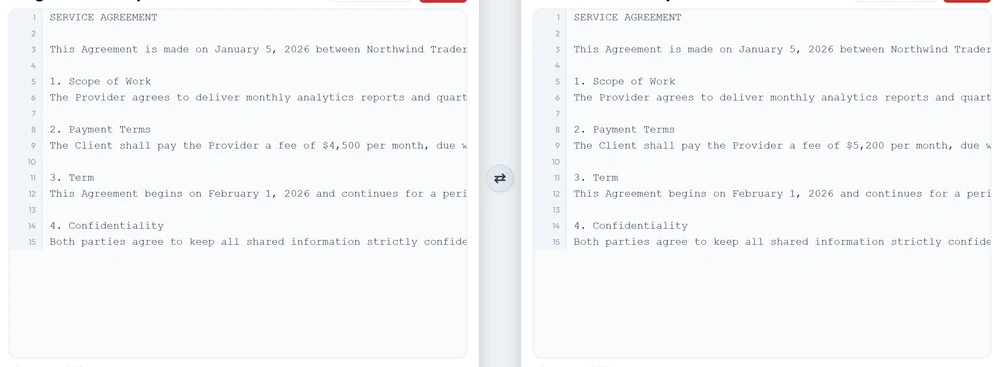
Open TextCompareo, paste the text from the first document into the left panel and the second into the right panel.
Step 4: Compare and Read the Differences
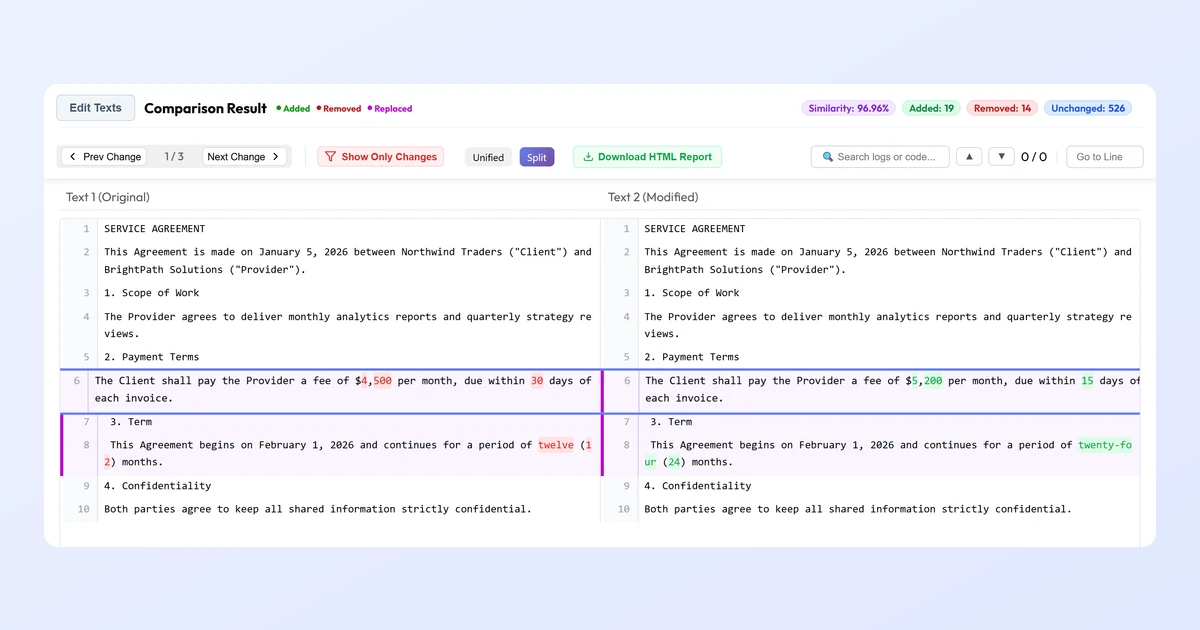
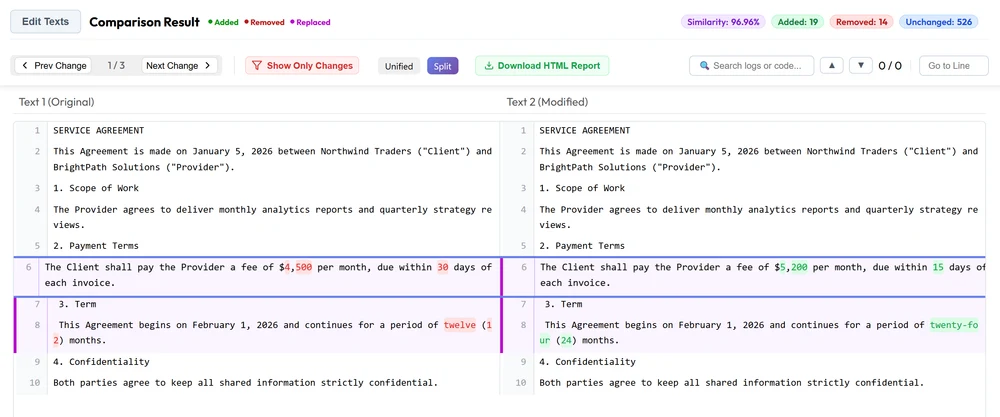
Click Compare Text. Every difference is marked at the word level — green for added, red for removed, purple for changed — so a changed date, a reworded clause, or an added paragraph stands out immediately.
Handling OCR Errors So They Don't Become False Differences
Here is the catch that trips people up. OCR is never 100% perfect, and its small misreads can show up as "differences" that are really just recognition errors. If you OCR two copies of the same page with two different tools, the two outputs may differ even though the documents are identical. The classic confusions:
- Lowercase
l, uppercaseI, and the digit1 - The letter
Oand the digit0 rnread asm, orclread asd- Dropped or added spaces, and broken line endings
Two habits keep these from polluting your comparison:
- OCR both files with the same tool and settings. Consistent errors on both sides tend to cancel out, so the diff shows real edits rather than tool-to-tool noise.
- Normalize before you compare. In TextCompareo, turn on Ignore Extra Whitespace so spacing and line-break differences from OCR do not register as changes. If letter case is not important to your check, enable Ignore Case too.
Whatever the diff surfaces, glance back at the original scans to confirm a flagged change is a real edit and not an OCR slip. The comparison points you to the exact spot to check, which is most of the work.
Three Ways to Compare Scanned Documents
OCR-then-text is the most practical route, but it helps to know where it fits among the alternatives.
| Method | What it compares | Best for |
|---|---|---|
| OCR + text diff | The words, after extraction | Finding wording, number, and clause changes — the usual goal |
| Image / pixel diff | The pages as pictures | Spotting stamps, signatures, or layout shifts — but noisy on re-scans |
| AI document compare | Meaning and structure | Semantic changes across reformatted docs — heavier and often paid |
For the everyday task of "what changed in the text between these two scans," OCR plus a word-level text diff is fast, precise, and free.
Keep Sensitive Scans Private
Scanned documents often contain signed contracts, invoices, medical records, IDs, or legal filings. Two parts of this workflow touch that data, so protect both. For confidential documents, use an approved local OCR engine such as Tesseract or an organisation-managed desktop product. TextCompareo's comparison logic runs in the browser, which reduces application-server exposure, but does not override policy or eliminate extension, clipboard, analytics and managed-network risks. See our browser privacy checklist.
Frequently Asked Questions
Can I compare two scanned PDFs directly?
Not directly. A scanned PDF is an image with no text layer, so there is nothing to compare word by word until you extract the text with OCR. Once both files are OCR'd to text, paste them into TextCompareo to see every difference.
Does TextCompareo do OCR on scanned PDFs for me?
No. TextCompareo compares the digital text in a PDF and does not run OCR on images. Use a dedicated OCR tool (Tesseract, Adobe Acrobat, Google Drive, or your OS) to extract the text first, then compare the extracted text here.
How do I know if my PDF is scanned or digital?
Try to select a sentence with your cursor. If the text highlights, it is a digital PDF you can compare directly. If nothing selects and you only get a box over the page, it is a scanned image and needs OCR.
Why does my comparison show changes that are not real?
OCR is not perfect and can misread characters — 1 for l, 0 for O, rn for m — which appear as differences. OCR both files with the same tool, and turn on Ignore Extra Whitespace (and Ignore Case if needed) to filter out the noise. Then check any flagged change against the original scan.
What is the best free tool to OCR a scanned PDF?
Tesseract is the leading free, open-source OCR engine and runs entirely offline, which makes it ideal for private documents. For a no-install option, opening a PDF with Google Docs will also extract the text for free.
Is it safe to OCR and compare confidential documents?
Use an approved local OCR and comparison workflow for confidential or regulated documents. If policy permits a browser tool, redact sensitive fields and verify the data path with harmless sample text first. Browser-side comparison reduces one risk; it does not make the whole environment automatically safe.
What resolution should I scan at for good OCR?
Scan at 300 DPI or higher with sharp black-on-white contrast and straight, un-skewed pages. Higher resolution and cleaner input dramatically reduce OCR errors, which means a cleaner comparison afterward.
Related Reading
Compare Your Extracted Text Now
OCR your scanned PDFs, then compare the extracted text without signing up. Redact sensitive fields first.
Open TextCompareo