A good Diffchecker alternative depends on what you are comparing. TextCompareo is convenient for quick browser-based text and supported-document checks; WinMerge is strong for Windows files and folders; Meld is useful for two- and three-way developer workflows; and Visual Studio Code already includes a capable file diff. For confidential material, use tooling approved by your organisation—usually a local desktop or command-line workflow.
Quick picks
- Fast browser comparison: TextCompareo for non-sensitive text and supported files.
- Windows folders: WinMerge for local file and directory comparison.
- Two- or three-way developer diffs: Meld.
- Code already on your machine: Visual Studio Code's built-in diff editor.
How We Compared the Alternatives
This guide compares deployment model, supported workflows, installation requirements and practical limits. Product plans and features change, so the official project pages linked below are the source of truth. We do not treat “client-side,” “encrypted,” or “private” as automatic proof that a tool is approved for confidential data.
| Tool | Runs as | Useful for | Main trade-off |
|---|---|---|---|
| TextCompareo | Browser application | Quick text and supported-document comparisons | Browser environment and device memory still matter |
| WinMerge | Windows desktop application | Files, folders and local directory trees | Windows-focused; installation required |
| Meld | Desktop application | Two- and three-way file or version-control comparisons | Developer-oriented workflow |
| Visual Studio Code | Desktop editor | Code, text and files already in a project | Not a dedicated Office-document comparison product |
| Diffchecker | Web and desktop offerings | General-purpose comparison | Check its current plan, feature and privacy documentation |
1. TextCompareo: Quick Browser-Based Comparison
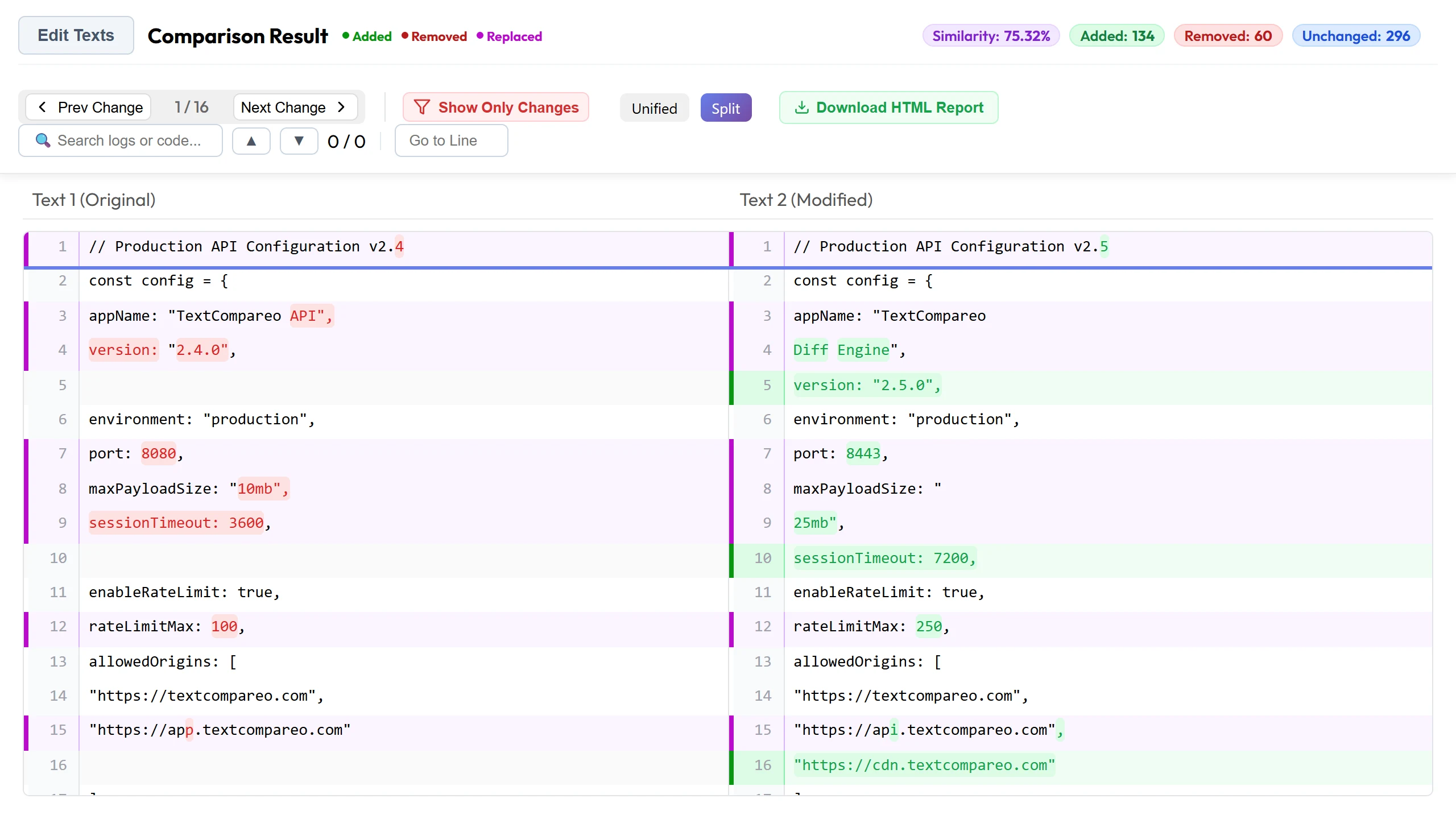
TextCompareo is useful when you want a side-by-side comparison without installing an application. Its main comparison logic runs in browser-side JavaScript. Dedicated pages handle supported workflows such as PDF text comparison and spreadsheet comparison.
Choose it when
- You need a quick comparison on a device where you cannot install software.
- You are comparing non-sensitive text or a supported file type.
- You want a visual result with additions and deletions highlighted.
Do not choose it when
- Your policy prohibits third-party websites or browser tools.
- The input contains live secrets, regulated data or privileged material.
- You need to recurse through a very large directory tree.
Browser-side comparison reduces one exposure path, but the page can still load ordinary assets or analytics, and extensions, spell-check features, clipboard sync and managed-network software sit outside the comparison engine. Use harmless sample text in the browser's Network panel to inspect the workflow, and use approved local tooling for restricted data.
2. WinMerge: Local Windows File and Folder Diff
WinMerge is an open-source Windows comparison and merging tool. It can compare files and folders, making it a better fit than a browser tab for local directory work, release packages and backup checks.
Strengths
- Local file and folder comparison.
- Visual navigation through changed files.
- Open-source project with plugins and documentation.
Limitations
- Windows-focused.
- Requires installation and access to the local files.
- Office or PDF fidelity depends on the workflow and available plugins; verify before relying on it.
3. Meld: Two- and Three-Way Developer Comparison
Meld is a visual diff and merge application designed around files, directories and version-control workflows. Its three-way view is especially useful when resolving a merge with a base version and two competing edits.
Strengths
- Two- and three-way comparisons.
- File, directory and version-control views.
- Direct editing while reviewing changes.
Limitations
- Best suited to text and developer workflows.
- Not intended to preserve Word or PDF page layout.
- Installation and platform packaging vary.
4. Visual Studio Code: Diff Files Already in Your Project
If Visual Studio Code is already installed, its diff editor may be all you need for code, Markdown and configuration files. From a terminal, open two files with:
code --diff original-config.json updated-config.jsonYou can also select one file for comparison in the Explorer and compare it with a second file. This is a local editor workflow, but installed extensions and remote-development setups can change the data path. Use a trusted profile and follow your repository's security policy.
What About Diffchecker?
Diffchecker remains one option and offers multiple comparison products. Its plans, limits and processing details can change. Instead of relying on a competitor article's snapshot, check Diffchecker's current product, pricing and privacy pages for the exact feature you plan to use. Apply the same rule to every web tool, including TextCompareo.
A Practical Privacy Check
- Classify the input. Public text, internal material, credentials and regulated records require different controls.
- Read the current policy. Check retention, subprocessors and account settings for the specific feature.
- Inspect with harmless samples. In DevTools, search request payloads for a unique test string. Do not test with a real secret.
- Check the surrounding environment. Extensions, clipboard sync, enhanced spell check, analytics and enterprise network software can create other paths.
- Prefer local approved tools for restricted data. A desktop or command-line diff is usually easier to govern and audit.
Frequently Asked Questions
What is the best free Diffchecker alternative?
For a quick non-sensitive browser check, TextCompareo is convenient. For Windows folders, use WinMerge. For three-way developer diffs, consider Meld. If you already use VS Code, its built-in diff is often the simplest choice.
Which option works without a website?
WinMerge, Meld and Visual Studio Code are installed desktop applications. Command-line tools such as git diff --no-index and diff -u are also good local options.
Can these tools compare PDFs or spreadsheets?
TextCompareo has dedicated PDF and Excel/CSV workflows. Desktop text diff tools generally compare extracted text rather than document layout. Confirm what each tool preserves before using the result for legal, financial or design review.
Is a client-side web diff safe for confidential files?
Client-side processing reduces application-server exposure but does not establish policy approval or eliminate other browser and network paths. Use organisation-approved local tooling for confidential, regulated or privileged material.
Official Sources
- WinMerge official site
- Meld official site
- Visual Studio Code documentation: viewing diffs
- Diffchecker official site
Compare Two Non-Sensitive Versions
Open TextCompareo for a quick browser comparison, or choose a local tool when the material or policy calls for one.