Online file comparison works in four steps: you upload two files, the tool reads the text out of them, it lines that text up and finds what's different, then it shows you the differences in color — usually green for added, red for removed. All of this can happen right in your browser, without your files ever touching a server.
That's the short version. But if you've ever wondered what's actually happening between the moment you click "Compare" and the moment you see red and green highlights on your screen, this is worth understanding — especially if you're comparing anything sensitive, like a contract or financial report.
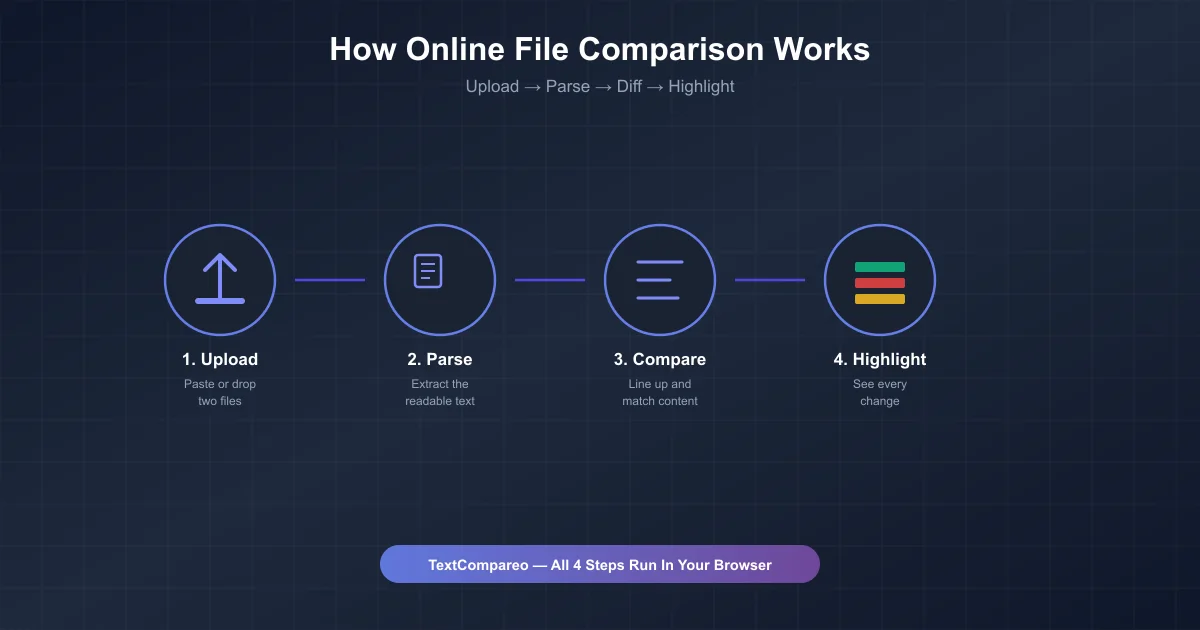
Step 1: You Give It Two Files
It starts simple — you paste text into two boxes, or you drop in two files. Could be two drafts of an essay, two versions of a spreadsheet, or a PDF and a Word doc you want to check against each other.
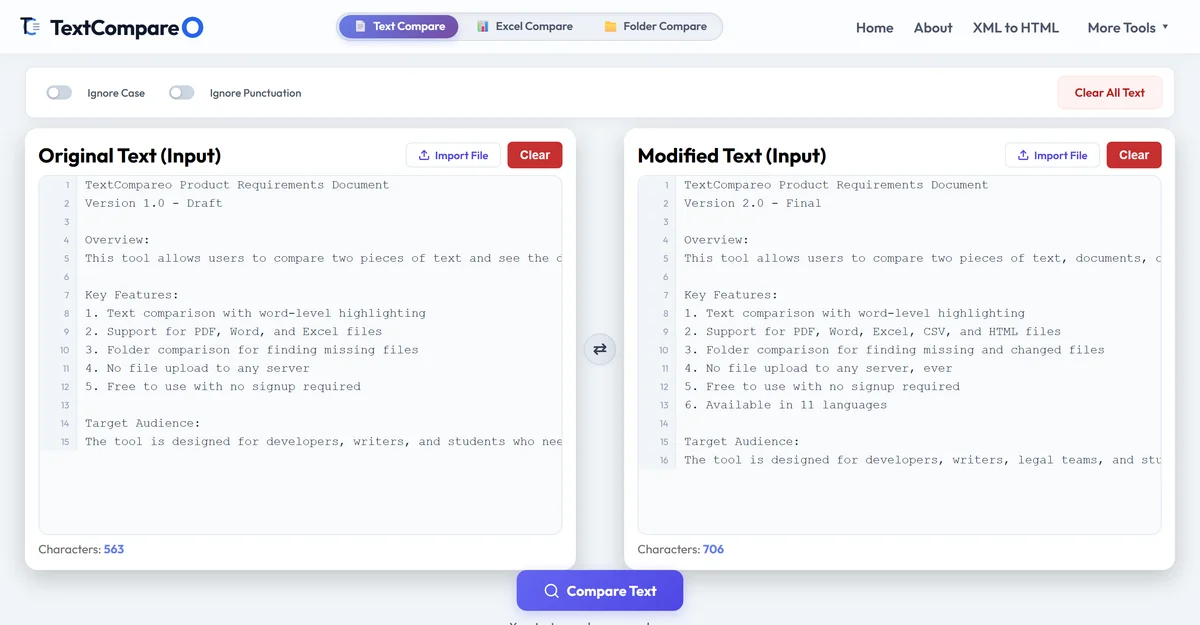
Behind the scenes, nothing has happened yet. The tool is just holding your two pieces of text, waiting for you to hit compare.
Step 2: It Pulls Out the Actual Text
This step is where things get interesting, and it's the part most people never think about. If you upload a plain .txt file, there's nothing to do — the text is already just text. But a PDF, a Word document, or an Excel file isn't stored as plain text at all. It's a mix of formatting codes, fonts, layout instructions, and the actual words, all bundled together.
So the tool has to parse the file — that means digging through all that formatting junk and pulling out only the readable words. A PDF parser reads the internal text objects. A Word parser unzips the file (yes, a .docx is secretly a zip file) and reads the XML inside. An Excel parser reads each cell, row by row.
Good parsing is what separates a useful comparison tool from a frustrating one. If the parser is sloppy, you'll see comparison results full of garbage — random symbols, broken formatting, missing paragraphs. A good parser hands off clean, readable text to the next step, with nothing lost and nothing extra added.
Step 3: It Lines Up the Text and Finds What Changed
Now both texts are ready, and the real work begins. The tool needs to figure out what changed between version one and version two. This sounds simple, but it's actually a classic computer science problem — the goal is to find the smallest possible set of changes that turns text A into text B.
Here's why that matters: imagine you added one sentence in the middle of a long paragraph. A dumb comparison would say "everything after this point is different," because it just compares line 1 to line 1, line 2 to line 2, and so on — and now everything is shifted by one line. A smart comparison notices that one new sentence was inserted, and everything else still matches up.
Most comparison tools use something called the Myers diff algorithm, published by Eugene Myers back in 1986. It's still the standard today. Without getting into the math, here's the idea: it treats the comparison like finding the shortest path through a grid, where moving one way means "this line was removed," moving another way means "this line was added," and moving diagonally means "these lines match, no change here." The algorithm finds the shortest path — which is the same thing as finding the fewest changes needed.
This is also why comparison tools can tell the difference between something being replaced versus something being removed in one spot and added somewhere else. The algorithm is smart enough to match up similar chunks of text even when their position moved.
Step 4: It Shows You the Differences
Once the tool knows exactly what changed, it needs to show you in a way that's easy to scan. This is usually done with color: green for text that was added, red for text that was removed, and sometimes yellow or purple for text that was replaced.
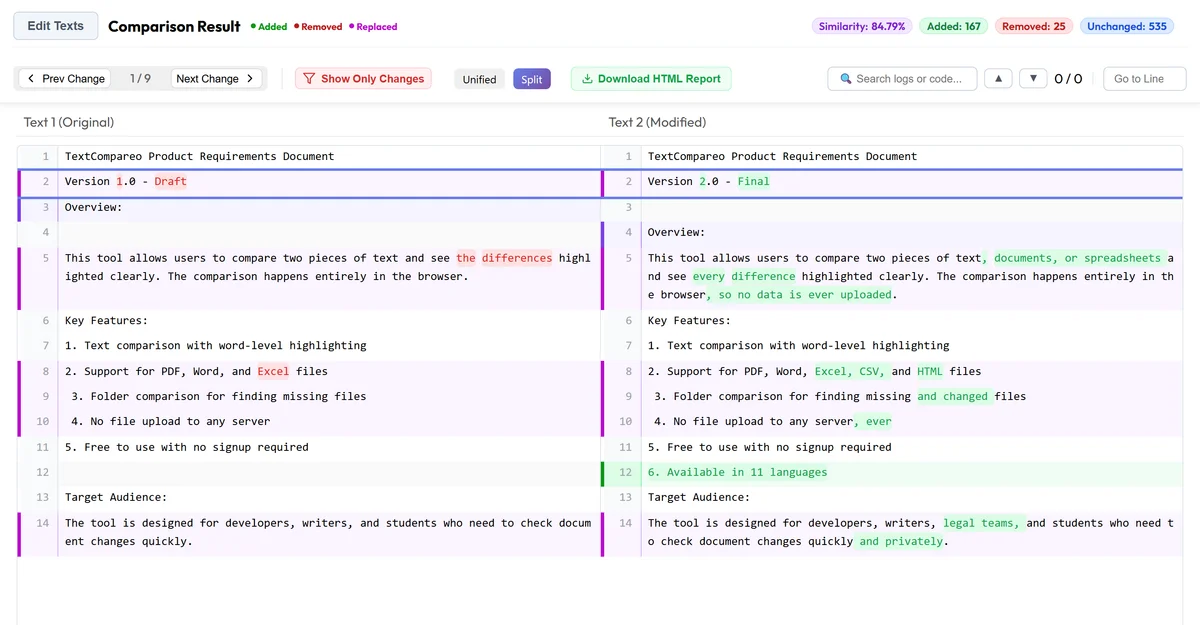
Notice in the screenshot above that the highlighting works at the word level, not just the line level. Line 5 didn't just get marked "changed" — you can see exactly which words were added ("documents, or spreadsheets") inside a line that's mostly the same. That's a much more useful result than "these two paragraphs are different, good luck finding what."
Where Does Your File Actually Go?
This is the part that should matter most to you, and it's the part most comparison tools don't explain clearly. When you use a typical online comparison tool, your file gets uploaded to a server somewhere, processed there, and the result gets sent back to your browser. That means a copy of your document — maybe a contract, a resume, a financial report — sat on someone else's computer, even if just for a few seconds.
TextCompareo performs parsing, comparison and highlighting inside your browser. That means the compared input does not need to be posted to the site's application server. It does not, however, prove that every part of the browsing environment is private: page assets and analytics, extensions, spell-check features, clipboard sync and managed-network software are separate paths to review.
If you're comparing anything with real stakes — legal documents, financial data, medical records, unpublished work — this difference is worth knowing about before you paste something into just any tool online.
Where This Process Actually Gets Used
Once you understand the upload-parse-compare-highlight flow, you start noticing it everywhere:
- Checking a contract redline — a lawyer sends back a Word doc with changes, and you need to know exactly what moved before you sign anything.
- Reviewing code changes — developers use this exact process every day, just applied to source code instead of prose.
- Comparing spreadsheet exports — did this month's numbers actually change from last month's, or did someone just re-save the file?
- Proofreading edits — a writer wants to see precisely what an editor changed, word for word, not just "accept all changes."
- Verifying a translation — comparing an English document with a translated version to check nothing got dropped.
Compare Text, PDFs, Word Docs, Excel Files, or Whole Folders
The four-step process stays the same no matter what you're comparing — only the parsing step changes based on the file type. TextCompareo handles all of these:
- Plain text — no parsing needed, straight to comparison
- PDF files — text objects are extracted from the PDF structure
- Word documents — the XML inside the .docx file is read
- Excel spreadsheets and CSV files — each cell is read row by row
- HTML pages — tags are stripped, even from JavaScript-heavy sites
- Whole folders — every file inside gets matched up and compared one by one
You can even compare across formats — drop a PDF on one side and a Word doc on the other, and the tool parses both down to plain text before comparing.
Frequently Asked Questions
How does an online diff checker actually work?
It reads the text out of both files, uses an algorithm (usually the Myers diff algorithm) to find the smallest set of changes between them, then highlights those changes in color — added text in green, removed text in red.
Is my file uploaded to a server when I compare it online?
It depends on the tool and feature. TextCompareo reads supported PDF and Word inputs and compares the extracted text in browser-side JavaScript, so the comparison does not require posting the input to its application server. Verify the behaviour with harmless sample data and inspect the whole browser environment before using sensitive material.
What is the Myers diff algorithm?
It's the most widely used method for comparing two pieces of text, published in 1986. It finds the shortest possible list of additions and deletions that would turn one text into the other, which is why it can spot a single inserted sentence instead of marking an entire paragraph as changed.
Why does comparing a PDF sometimes give messy results?
PDFs don't store text the simple way a .txt file does — they store positioned text objects mixed with formatting. If the parser reading the PDF is weak, it can pull out text in the wrong order or miss parts entirely. A good parser handles this cleanly.
Can I compare a Word document with a PDF?
Yes. Since both get parsed down to plain readable text before the comparison step, you can mix and match formats — PDF against Word, Excel against CSV, HTML against plain text.
Does file size affect how comparison works?
The steps stay the same, but larger files take longer to parse and compare. Because TextCompareo runs everything locally, speed depends on your own device rather than someone else's server being busy.
What's the difference between comparing at the line level and the word level?
Line-level comparison tells you which lines changed. Word-level comparison, which TextCompareo uses, shows exactly which words inside that line changed — a much more precise result when you're checking small edits in a long paragraph.
- How to Compare Two PDF Files Online for Free
- How to Compare Two Word Documents Online (DOCX/DOC)
- How to Compare Two Excel Files Online
- How to Compare HTML Files Online: Spot Code Differences
- How to Compare Two Folders Online: Find Missing & Changed Files
- How to Compare CSV Files Online: Quick & Free