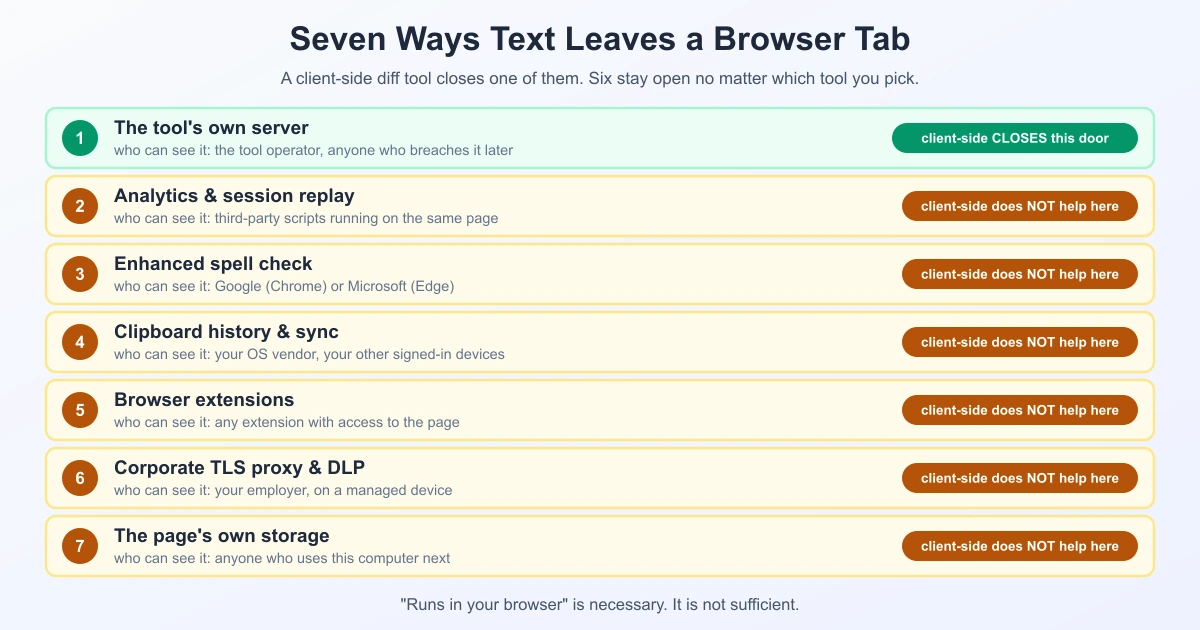
A diff tool that processes compared input locally in your browser can reduce exposure to the tool's server, but that alone does not make confidential work safe or compliant. "The tool doesn't upload" answers only one question. Text can leave a browser tab through at least seven different doors, and the diff tool controls only part of that exposure. Your spell checker, clipboard, extensions, and employer's network proxy are outside the tool vendor's control.
This article maps all seven, tells you which ones actually matter for your situation, and gives you a five-minute audit to run before you paste anything you'd rather not explain in a meeting.
The question you're actually asking
"Is this safe?" usually means one of three very different things:
- "Will this end up on someone's server?" — a technical question with a checkable answer.
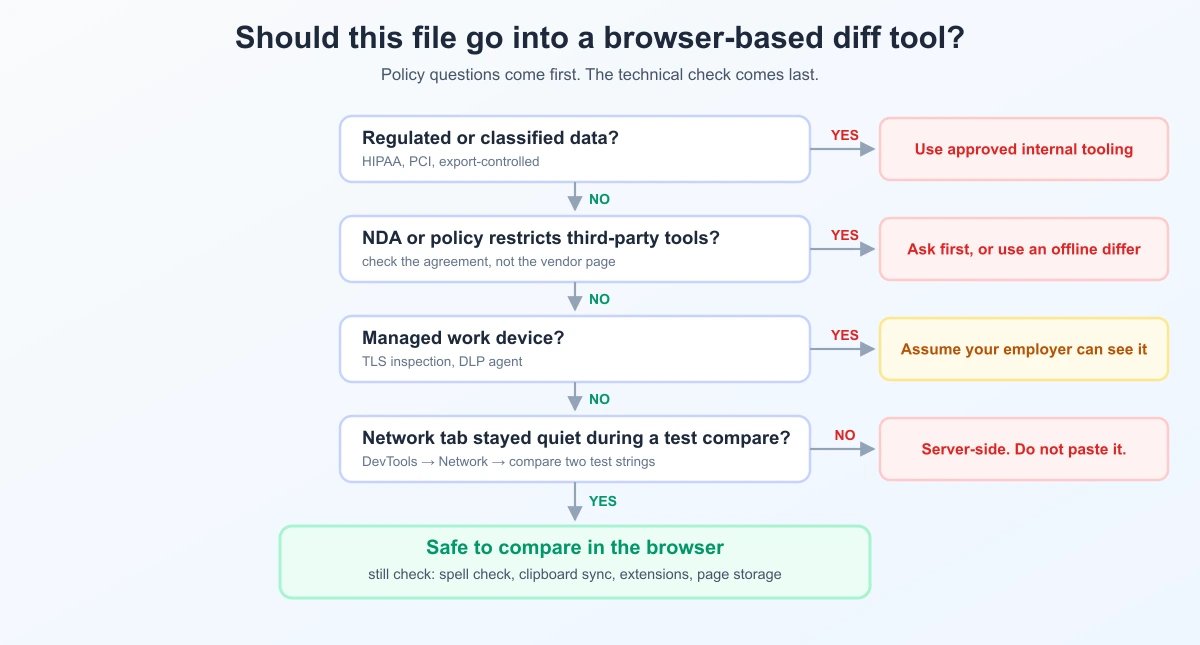
- "Will I get in trouble?" — a policy question. Your NDA or your company's data-handling rules may ban browser tools outright, whether or not they upload.
- "Could a specific person see this?" — a threat-model question, and the answer changes completely depending on who that person is.
Most advice on this topic only answers the first one. The other two are where people actually get burned.
Start with a threat model, not a feature list
Before comparing tools, name the adversary. "Safe" is meaningless without one.
| Who you're worried about | What they can reach | Does client-side processing help? |
|---|---|---|
| The tool's operator | Whatever your browser sends them | It can help. Confirm that the comparison request does not carry your test input. |
| Someone breaching the tool's servers later | Whatever was stored there | It can help. If the tool does not transmit or retain input, there is less server-side exposure; verify the implementation and policy. |
| A third-party script on the page | The full DOM, including your text | No. Same-page scripts see everything. |
| Your browser vendor | Whatever the browser itself transmits | No. Separate channel entirely. |
| Your employer | Everything on a managed device | No. They own the machine and often the TLS. |
| Someone using your computer after you | Anything still in the tab or clipboard | Partly. Depends on what the page kept. |
Notice the pattern: browser-local processing can reduce exposure to a tool's server, but it is not an answer to the other rows. It is useful, not sufficient.
The seven paths out of a browser tab
1. The tool's own server
This is the one everybody checks, and rightly so. Server-side tools POST your file to a backend, where it may be logged, cached, or retained under whatever the privacy policy allows. A browser-local comparison runs the comparison code on your machine; the page may still make ordinary requests for assets or analytics, so check that no request carries your input.
You can inspect which kind you are using with your browser's Network tab. Use a unique harmless sample, run the comparison, and search request payloads for that marker. HTTPS protects data in transit to a server; it does not tell you what the receiving service does with the input.
2. Analytics and session-replay scripts
Here's the door most privacy write-ups skip. A page can do zero uploading of your file and still leak it, because a third-party script running on the same page can read the whole DOM — including the textarea you just pasted into.
There's a meaningful difference between two categories that often get lumped together:
- Page analytics (Google Analytics and similar, in a default install) records events like page views and clicks. It does not read your form contents.
- Session replay (tools built on libraries like rrweb) records the DOM continuously so someone can watch a video-like playback of your session. By default that includes form field values.
This isn't theoretical. In 2017, researchers at Princeton's Center for Information Technology Policy found session-replay scripts on 482 of the 50,000 most-visited sites, capturing sensitive data in the process. Replay vendors have added masking since then, but the masking is heuristic — it keys off things like type="password" or autocomplete attributes. A plain <textarea> holding your unreleased contract matches none of those heuristics.
How to check: open DevTools → Network, filter by JS, and look at which third-party domains load scripts. If you see a session-replay or heatmap vendor, treat that page as if the operator can read your input, no matter what the marketing copy says.
3. Your browser's spell checker
Basic spell check is local — the dictionary lives on your machine and nothing is transmitted. That's the default, and it's fine.
The enhanced variants are different. Chrome's Enhanced Spell Check and Edge's Microsoft Editor send the contents of text fields to Google's and Microsoft's servers to produce better suggestions. Security firm Otto-js demonstrated this in 2022 in research that got nicknamed "spell-jacking," showing form data — in some configurations including revealed passwords — leaving the browser this way. Google's position is that the data isn't attached to a user identity and is processed only temporarily, and it committed to excluding password fields.
Two things matter for you. First, these features are opt-in, so most people aren't affected. Second, if you turned one on at some point and forgot, every confidential paragraph you paste into any web page is going to a third party regardless of how private the site itself is. Worth thirty seconds to check: visit chrome://settings/?search=spell in Chrome, or edge://settings/?search=editor in Edge.
4. The clipboard
You almost certainly got the text into the browser by copying it. On Windows 10 and 11, clipboard history (Win+V) keeps recent clips around, and its "Sync across devices" option uploads them to Microsoft's cloud so they appear on your other signed-in machines. macOS Universal Clipboard does something comparable across Apple devices, and third-party clipboard managers keep their own searchable databases on disk.
None of that has anything to do with the diff tool. It's a step earlier in the chain, and it's the step people forget. If clipboard sync is on, your confidential paragraph left the machine before it ever reached the browser tab.
5. Browser extensions
An extension granted host permissions for a site can read and modify every page on it. That's not a bug — it's how ad blockers, password managers, grammar assistants and translation tools do their jobs. A grammar extension in particular has to read what you type; that's its entire function.
Check what you've actually installed at chrome://extensions. Anything showing "Read and change all your data on all websites" can see your comparison. For genuinely sensitive work, an Incognito or Private window (where extensions are disabled by default) removes this door cleanly.
6. Your employer's network and device
On a corporate laptop, this is usually the door that matters most, and it's the one no tool choice can affect.
Many organisations run TLS inspection: a company-installed root certificate lets a proxy decrypt, inspect and re-encrypt HTTPS traffic. Endpoint DLP agents go further and watch what happens on the machine itself — clipboard contents, file reads, keystrokes in some configurations. Neither is defeated by client-side processing, because client-side processing happens on a machine your employer controls.
This is rarely a security problem. It's frequently a policy one. If your company's data classification rules say client-confidential material doesn't go into third-party web tools, "but the comparison runs locally" is not a defence that will land well. Ask first.
7. The page's own storage
Client-side doesn't mean nothing is written down. Tools routinely stash your input in localStorage or sessionStorage so a refresh doesn't lose your work — a genuinely useful feature with a real trade-off.
The distinction to know:
sessionStorageis scoped to one tab and cleared when that tab closes.localStoragepersists indefinitely until something deletes it — across restarts, across days.
Neither is transmitted anywhere. Both are readable by any script on that origin, and both survive a page reload. On a shared or borrowed computer, that difference is the whole story. Check it yourself: DevTools → Application → Storage, then look at the two panes while a comparison is loaded.
A five-minute audit before you paste anything sensitive
Run this once per tool. It's tedious the first time and quick after that.
- Watch the network during a comparison. DevTools → Network, clear it, paste two short test strings, hit compare. A client-side tool shows no request carrying your text. This is the single most informative check.
- Read the third-party script list. Same Network tab, filter to JS. Recognise every external domain, or assume it can read the page.
- Look at storage. DevTools → Application → Local Storage and Session Storage. Note whether your text is there and which one it's in.
- Check your own spell-check setting. Enhanced/Editor off for confidential work.
- Check clipboard sync. Windows: Settings → System → Clipboard. macOS: Handoff settings.
- Consider a private window. Extensions off by default, storage discarded on close. Two doors shut with one action.
- Check the policy, not just the tech. If it's client data, regulated data, or under NDA, the rule that binds you is your organisation's — not the vendor's privacy page.
When a browser is the wrong tool entirely
Being straight about this: there are cases where no web tool is the right answer, and a vendor telling you otherwise is selling.
- Regulated data — patient records, card numbers, anything under HIPAA or PCI DSS. Use approved internal tooling.
- Classified or export-controlled material. Not a judgement call you should be making from a browser tab.
- An explicit policy ban. The technical argument doesn't matter; the rule does.
- Files too large to be practical. Multi-gigabyte comparisons belong in a desktop tool with a real file handle.
For those, use a local desktop differ or a command-line one. diff ships with every Unix-like system, git diff --no-index compares two arbitrary files without a repository, and Meld, Beyond Compare and WinMerge all work fully offline. No network, no browser, no doors.
What TextCompareo does — and what it can't do
Everything you can check about us, you should check rather than take on faith. Here's what you'll find:
The comparison is browser-local. The diff runs in JavaScript in your browser via first-party scripts (/diff.min.js, /script.js). The current comparison flow does not send the compared text or files to TextCompareo's servers. Use the Network tab with harmless sample input to confirm that no request carries the sample content; page assets and analytics requests are separate from the comparison.
Analytics and third-party scripts need separate scrutiny. The site can load analytics services, while the comparison itself runs in first-party browser code. A third-party script on a page can technically access page content, so inspect the live script list and follow your organisation's policy for sensitive material. TextCompareo does not use a session-replay or heatmap script to record typing, but users should verify the current implementation rather than rely on a marketing claim.
The current comparison flow does not intentionally save compared text inputs in localStorage or sessionStorage. Input is held in the current page while you work, so a reload may remove it. You can inspect DevTools → Application → Storage with harmless sample text if you need to validate the current behaviour.
The main text comparison has a 300 MB combined-input limit. Large, regulated, or policy-restricted files may be more appropriate for an approved desktop or command-line workflow.
What we cannot protect you from: your extensions, your browser's enhanced spell check, your clipboard history, your company's TLS proxy or DLP agent, and your own data-handling policy. Six of the seven doors are outside any web tool's reach. Anyone claiming otherwise is overselling.
If you want to see how the comparison itself works under the hood, How Online File Comparison Works walks through the mechanics.
Frequently Asked Questions
Are online diff tools safe for confidential files?
A browser-local diff tool can reduce exposure to the tool's server when a Network-tab check confirms that the comparison request does not carry your input. It does not protect you from browser extensions, enhanced spell check, clipboard sync, a managed corporate device, or your organisation's policy. Verify the tool with harmless sample input, then check the other exposure paths listed above.
How do I know whether a diff tool uploads my file?
Open your browser's developer tools, go to the Network tab, clear it, then run a comparison with two short test strings. If no request appears carrying your text, the comparison ran locally. Requests for fonts, images or analytics are normal; a POST containing your content is not.
Does HTTPS mean my file is private?
No. HTTPS encrypts data travelling between your browser and the server, which stops eavesdroppers in between. It does nothing about what the server does with your file once it arrives, and it doesn't apply at all to a tool that never sends the file.
Can my browser's spell checker see what I paste?
Basic spell check is local and transmits nothing. Chrome's Enhanced Spell Check and Edge's Microsoft Editor do send text-field contents to Google and Microsoft respectively — the behaviour Otto-js documented as "spell-jacking" in 2022. Both are opt-in, so check your settings before confidential work.
Is it safe to compare legal contracts online?
A browser-local comparison can avoid sending the compared text to the tool's server, but that is only one part of the risk. Many NDAs and client agreements restrict putting material into third-party tools regardless of architecture. Check the agreement and your firm's policy first — that is the constraint that actually binds you.
Does using a private or incognito window help?
Yes, on two fronts. Extensions are disabled by default in private windows, which closes the extension path. And storage is discarded when the window closes, so nothing survives for the next person on that computer. It does not affect network-level inspection or your OS clipboard.
Is my text stored after I close the tab?
It depends on which storage the tool uses. sessionStorage is cleared when its tab closes; localStorage persists until something clears it. TextCompareo's current comparison flow does not intentionally save compared text inputs to either storage area. Check any tool under DevTools → Application → Storage with harmless sample text.
What should I use if a browser tool isn't allowed?
An offline desktop or command-line differ. diff is built into macOS and Linux, git diff --no-index file1 file2 compares two files without needing a repository, and Meld, WinMerge and Beyond Compare all run fully locally.
Sources
- Future of Privacy Forum — Understanding Session Replay Scripts, covering the Princeton CITP findings on replay scripts and sensitive data capture.
- BleepingComputer — Google, Microsoft can get your passwords via web browser's spellcheck, reporting the Otto-js "spell-jacking" research.
- Google Chrome Enterprise Help — Navigating spell check using Chrome, on the difference between basic and enhanced spell check.
- NinjaOne — Enable or disable clipboard history sync in Windows 11, on cross-device clipboard upload.