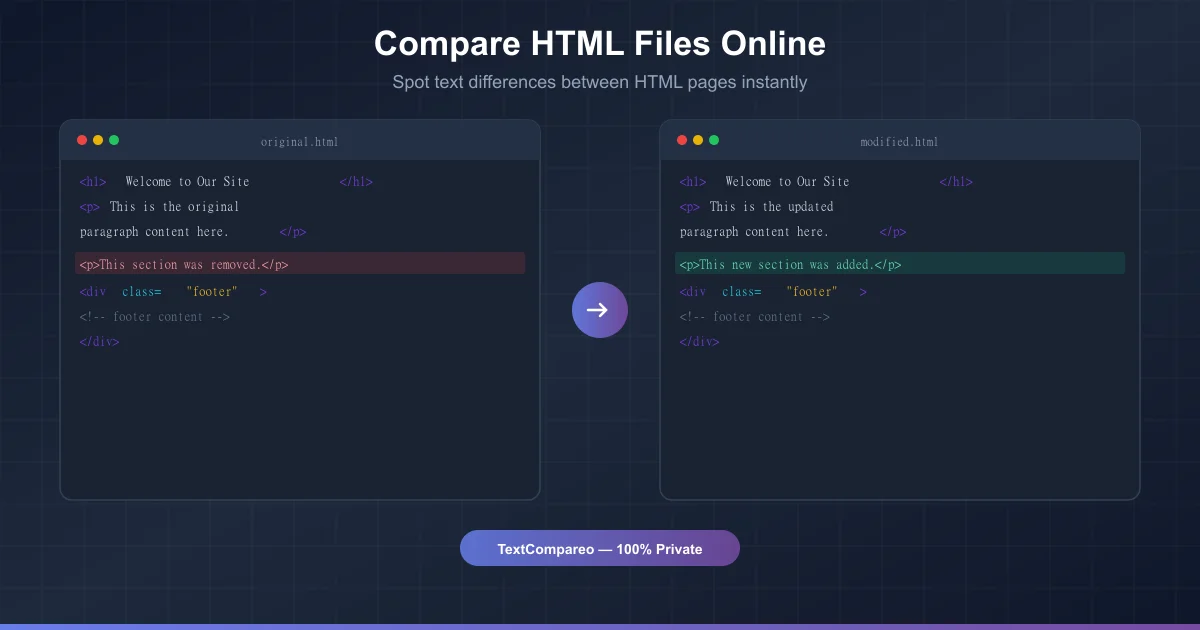
You can compare HTML files online by dropping them into TextCompareo's text compare tool. It strips out all the tags and markup, pulls out the readable text, and shows you what changed between two versions. No signup, no software, and your files stay in your browser the whole time.
HTML files are a pain to compare by hand. Open one in a code editor and you're staring at hundreds of lines of tags, classes, and attributes all tangled up with the actual words. One paragraph can easily stretch across twenty lines of markup. Good luck spotting a changed word in all that.
So yeah, that's where online comparison tools come in handy. Below, I'll show you how to do it, what the difference is between comparing code vs. comparing content, and when each one makes more sense.
How to Compare Two HTML Files Online (Step-by-Step)
The whole thing takes about 30 seconds:
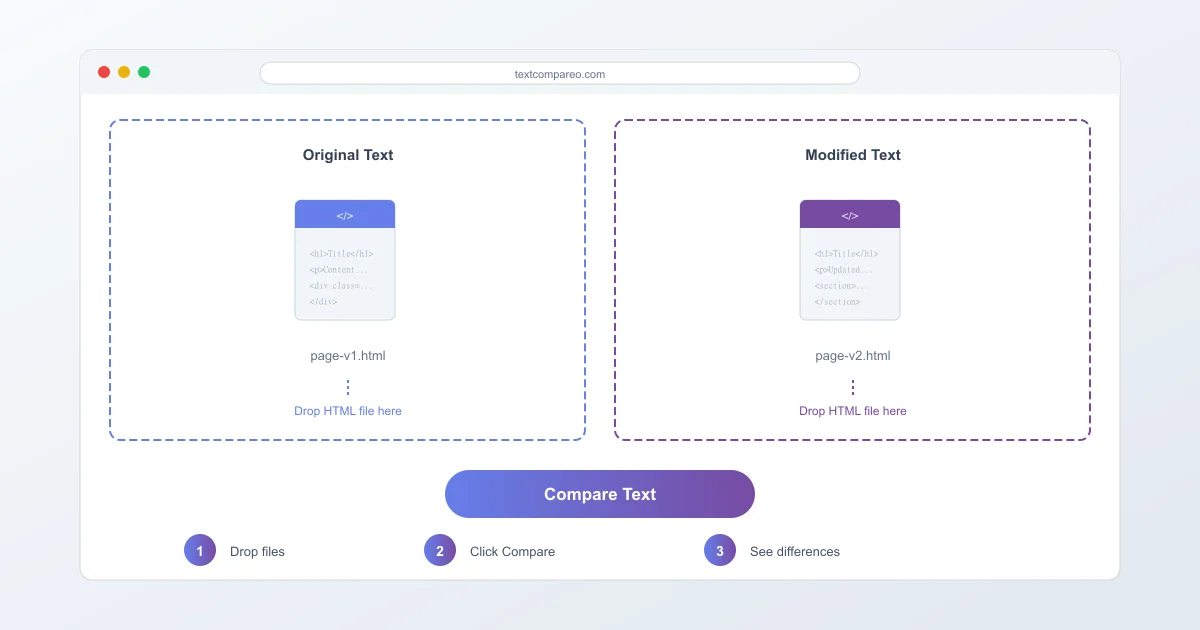
- Open TextCompareo in your browser.
- Drop your first HTML file into the left "Original Text" box. You can paste raw HTML code too.
- Drop your second HTML file into the right "Modified Text" box.
- Hit "Compare Text" — the tool pulls out readable text from both files, strips the tags, and highlights every difference word by word.
Done. Green highlights = added text. Red = deleted. Yellow = replaced. Use the arrow buttons to jump through changes one at a time.
Code Diff vs Content Diff — Which One Do You Need?
Most HTML comparison tools do a code diff. They compare every line of raw HTML — tags, attributes, whitespace, all of it. That's fine when you're debugging markup, but it's a mess when you just want to see what words changed on the page.
TextCompareo does something different. It pulls out the visible text first, then compares that. So you get:
- No noise from tag changes (like swapping a
<div>for a<section>) - CSS class renames don't show up at all
- You only see changes to actual words, headings, and paragraphs
- Image alt text gets included too
Need a raw code comparison instead? Just paste the HTML directly into the text boxes — don't upload files. It'll compare line by line as plain text.
Trim Headers and Footers for Cleaner Results
Every HTML page has nav menus, footers, sidebars, cookie banners — stuff that's the same on every page. When you compare two pages from the same site, all that repeated junk clutters your results.
There's a "Trim HTML Headers & Footers" checkbox that strips those out before comparing. You get a clean diff of just the main content — which is what you actually want to check.
Works with JavaScript-Heavy Sites Too
Here's something most people don't realize. Modern sites built with Next.js, React, or Nuxt.js don't always put their content in regular HTML. The text is often stuffed inside JavaScript that runs in the browser. Save one of these pages as an HTML file and the actual content might be trapped inside <script> tags.
Most diff tools choke on this. They strip all scripts and you get a nearly empty result. TextCompareo's parser actually understands these frameworks. It can pull content from:
- Next.js RSC (React Server Components) streaming data
- Older Next.js
__NEXT_DATA__payloads - Nuxt.js hydration data
- Inline links and references (like legal citations)
We tested it with a 1.2MB Finnish law page built on Next.js — the kind of file that gives other tools basically nothing. TextCompareo pulled out all 27,000+ words with every section heading and inline reference intact.
Mix and Match: HTML + PDF + Word
Say you have a contract as a Word doc and the same thing published as an HTML page on a website. Or a report that exists as both a PDF and a web article.
You can drop an HTML file on one side and a PDF or Word file on the other. TextCompareo extracts text from both and compares them. Most HTML diff tools won't let you do this — they want HTML on both sides.
When Would You Actually Need This?
More often than you'd think:
- Before publishing edits — you changed a page and want to double-check exactly what's different before it goes live.
- Comparing page versions — you saved a page last week and again today. What changed?
- Checking translations — put the English page on one side, the translated version on the other. Did anything get missed?
- Tracking policy changes — did that terms of service page change since last month? Drop both versions in and find out.
- Email templates — two versions of an HTML email. Spot the accidental changes before sending to 50,000 people.
- After a site migration — moved to a new CMS? Compare old and new pages to make sure nothing got lost.
What the Parser Actually Does
It's not just stripping tags. There's more going on under the hood:
| Feature | What It Does |
|---|---|
| Tag stripping | Removes all HTML tags, gives you clean readable text |
| Script & style removal | Strips out JavaScript, CSS, iframes, and noscript blocks |
| Image alt text | Grabs alt text from images so descriptions get compared too |
| Code block formatting | Keeps indentation inside <pre> tags |
| Block-level structure | Adds line breaks between paragraphs, headings, table cells, list items |
| Framework extraction | Pulls content out of Next.js, React, and Nuxt.js apps |
| Header/footer trimming | Chops out nav, sidebars, and footers if you want |
Review the Data Path Before Comparing Private HTML
TextCompareo parses and compares the selected HTML in your browser. That reduces exposure to the site's application server, but the surrounding page can still load assets or analytics, and browser extensions, clipboard sync or managed-network software are outside the comparison engine. Remove secrets such as tokens and private keys, then test the workflow with harmless sample text in DevTools.
File Types That Work
Besides regular .html and .htm files, you can also use:
.xhtml/.xht— XHTML documents.xml/.svg— XML and SVG files.asp,.aspx,.jsp,.php— server-side pages (HTML part gets extracted).mhtml— saved web page archives
And you can compare any of these against PDF files, Word documents, or plain text. The format conversion happens automatically.
Frequently Asked Questions
How do I compare two HTML files for text differences?
Drop both files into TextCompareo and hit Compare. It strips the HTML tags and compares just the readable text, highlighting additions, deletions, and replacements.
Can I compare HTML code line by line?
Yep. Paste your HTML code straight into the text boxes instead of uploading files. It'll compare as plain text, line by line.
What about pages built with React or Next.js?
TextCompareo handles those. It detects Next.js RSC data, __NEXT_DATA__ payloads, and Nuxt.js hydration content, and pulls out the text even when it's buried inside script tags.
Can I compare an HTML file with a PDF or Word doc?
Yes — drop HTML on one side and PDF or Word on the other. TextCompareo extracts text from both formats and compares them.
Is it safe to compare HTML files online?
Client-side parsing reduces one exposure path, but it is not a blanket security guarantee. Remove credentials, follow your organisation's policy, and use an approved local editor or command-line diff for restricted code.
How do I ignore nav menus and footer text?
Check the "Trim HTML Headers & Footers" box before comparing. It strips out navigation, footers, and sidebar stuff from both files.
What's a code diff vs a content diff?
Code diff compares raw HTML character by character — tags, attributes, everything. Content diff extracts the visible text first and only compares what a person would read on the page. Use code diff for debugging, content diff for checking what words changed.
Does minified HTML work?
Yes. The parser reads the HTML structure, not the formatting. Minified or prettified — doesn't matter, you get the same text out.