To compare two CSV exports from a CRM, load both files into a spreadsheet comparison tool and review the records it identifies as added, removed, or changed. In TextCompareo, the comparison flow processes the compared input locally in the browser rather than sending it to TextCompareo's servers. For customer data, that technical design is only one consideration: follow your organisation's data-handling policy and account for browser extensions, enhanced spell check, clipboard sync, and managed devices.
If you work in sales ops or RevOps, this is a weekly headache. Someone runs an import, a sync fires, a rep bulk-edits a view, and now yesterday's export and today's export do not match. The record count is off by a few, or a deal stage looks wrong, and nobody can say what actually changed. Comparing the two files turns that guessing game into a plain list of differences.
When You Need to Compare Two CRM Exports
Comparing CRM exports is one of those jobs that feels small until a number is wrong and you have to explain it. The common cases:
- Day-over-day changes. You pull the same contact or deal view every morning and want to know what changed overnight: new leads in, deals that moved stage, owners that got reassigned.
- Before and after an import. You are about to bulk-import a list into Salesforce or HubSpot. Export before, import, export after, and compare to review what the import changed.
- Checking a sync or integration. A two-way sync between your CRM and a marketing tool started behaving oddly. Compare a fresh export against a known-good one to see which fields the integration overwrote.
- Deduplication audits. After a merge or cleanup, compare the old export against the new one to help identify removed duplicates and unexpected record changes.
- Migration reconciliation. Moving from one CRM to another, compare the source export against the destination export to help identify missing records or field differences.
In every one of these, the question is the same: what is different between these two files? A comparison can narrow a large export to the records and fields that need review.
How to Compare Two CSV Exports (Step by Step)
Step 1: Export Both Files the Same Way
This step matters more than the tool. The cleanest comparison comes from two files that are shaped the same. So when you export from your CRM:
- Use the same columns in the same order for both exports. If one file has a "Deal Stage" column the other does not, every row will look changed.
- Sort both by the same key column before exporting, like Record ID, Contact ID, or Email. That single unique column per row is what makes matching reliable, because it lets the two files line up row for row even after records were added or removed.
- Export the same view or filter. Comparing "All Open Deals" against "My Deals" will show differences that are really just filter differences.
A minute of prep here saves you from a diff full of false alarms later.
Step 2: Upload Both CSVs Into TextCompareo
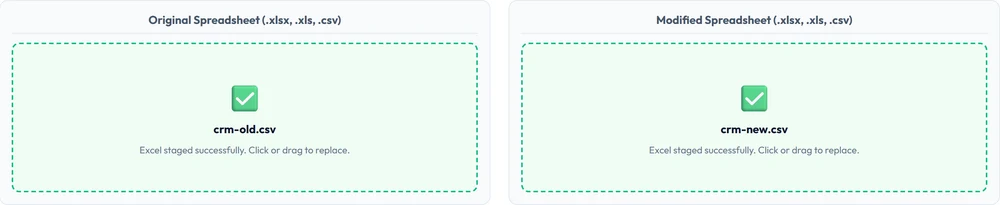
Open TextCompareo and choose the CSV comparison option. Drop your first export into the left box and the second into the right box. The tool reads the rows and columns, so a .csv file goes straight in, no pasting or cleanup needed.
Step 3: Read the Differences
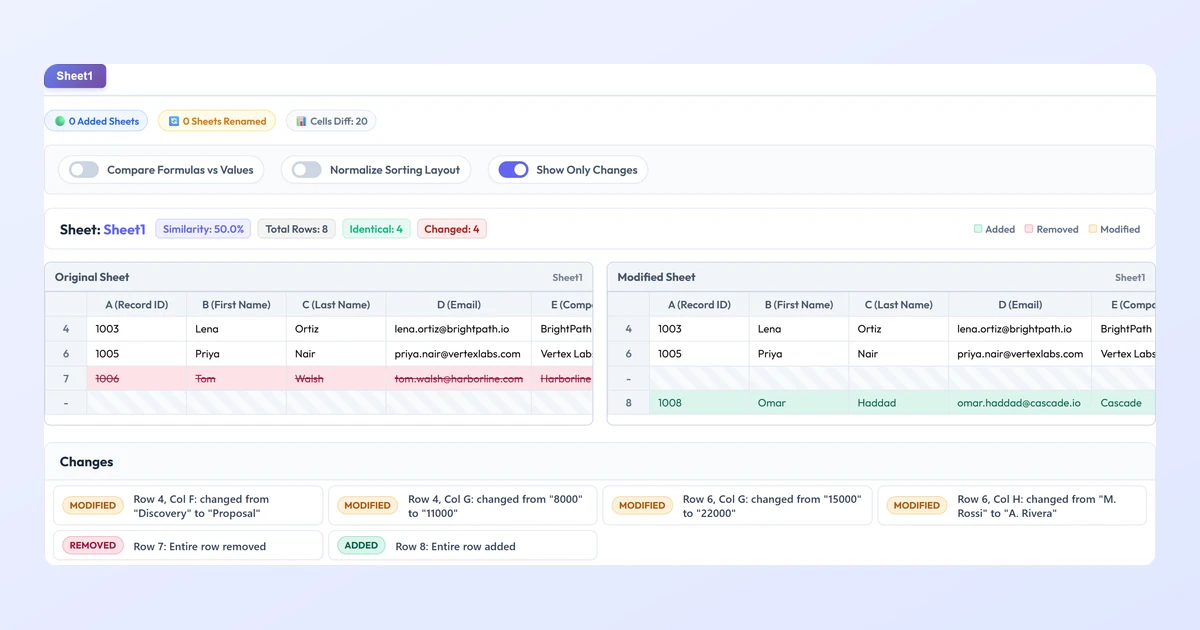
The comparison lays both files out as a grid and marks what changed, row by row and cell by cell:
- Green rows are records that are new in the second file.
- Red rows are records that were in the first file but are gone from the second.
- Highlighted cells are fields that changed between the two, with the old and new value shown side by side.
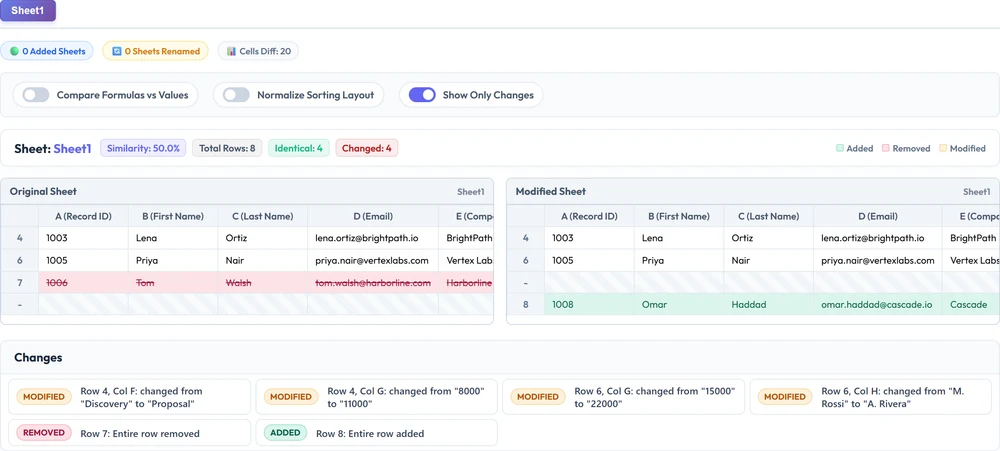
Use available display or filtering options to focus on detected changes. If the two exports use a different order, sort both by the same stable key column before comparing so that row order does not overwhelm the result.
What the Changes Mean in CRM Terms
The color coding maps neatly onto what actually happened in your CRM, which is what makes this useful for a report rather than just a curiosity:
- Added rows are usually new leads or contacts that came in, records that got un-filtered into your view, or entries an import created.
- Removed rows are records that were deleted, merged into a duplicate, or fell out of your view's filter. On a migration, a removed row can mean a record that failed to copy over, which is exactly what you want to catch.
- Changed cells are field updates: a deal that moved from "Qualified" to "Proposal," an amount that went from 12,000 to 18,000, an owner reassigned from one rep to another, or a lifecycle stage that advanced. These are the quiet edits that are almost impossible to spot by scrolling but jump out in a diff.
Tips for a Clean CRM CSV Diff
- Match the columns first. Same headers, same order, both files. This is the single biggest factor in a readable result.
- Sort by a stable key. Record ID or Email works better than Name, because names repeat and IDs do not.
- Drop the volatile fields. Columns like "Last Activity Date," "Last Modified," or a timestamp change on nearly every record and drown out the changes you care about. Remove them before comparing, or ignore them when you read the result.
- Keep date and number formats consistent. One file writing 1,000.00 and the other writing 1000 will read as a change even though the value is the same.
- Compare like with like. Contacts against contacts, deals against deals. Do not mix two different object exports in one comparison.
How the Comparison Handles Customer Data
CRM exports can contain names, email addresses, phone numbers, deal values, and pipeline data, so treat them as sensitive. TextCompareo's comparison flow processes the compared input locally in the browser and does not send the compared CSV content to TextCompareo's servers. This is not a blanket privacy or compliance guarantee: browser extensions, enhanced spell check, clipboard sync, managed devices, and your organisation's policies remain outside the tool's control. The main text comparison has a 300 MB combined-input limit; for large or regulated exports, use an approved desktop workflow. Read more in our browser privacy guide.
Frequently Asked Questions
How do I compare two CSV exports from a CRM?
Export both files with the same columns, open TextCompareo, choose the appropriate CSV or spreadsheet comparison option, and load one file on each side. The result can highlight detected added records, removed records, and changed fields for review.
Should I upload the CSV or paste it?
For CRM exports with many columns, use the spreadsheet comparison option when the CSV format is supported. A structured view can be easier to review than pasting raw text, but check the result against the source export.
My two exports are in a different order. Will that break the comparison?
Sort both exports by the same stable key column, such as Record ID or Email, before comparing them. This reduces differences caused only by row order and makes the result easier to review.
How do I see only the records that changed?
Use any available filter for changed rows to focus the review. Always check the source exports before acting on a detected addition, removal, or field change.
Can I compare Salesforce and HubSpot exports?
Yes, after you align comparable columns. The two systems can name and order fields differently, so map them to the same headers and order first; then review the output to separate data changes from export-format differences.
Is it safe to compare exports with real customer data?
The comparison flow processes compared input locally in the browser and does not send the compared CSV content to TextCompareo's servers. That does not by itself make a live production export safe or compliant: browser extensions, enhanced spell check, clipboard sync, managed devices, and your organisation's rules may still apply. Use approved tooling when policy requires it.
How many rows can it handle?
The main text comparison has a 300 MB combined-input limit. Practical performance depends on the file structure, browser, available memory, and how different the exports are. For a large export, start with only the columns needed for the review or use an approved desktop tool.
Related Reading
Compare Your CRM Exports Now
Load two supported CSV exports and review detected added, removed, and changed records in your browser. Free, no signup.
Compare CSV Files