Because what a cell shows you and what the file stores are two different things. Excel renders a value through a number format; a comparison tool reads the value underneath. When those two disagree, you get a diff full of changes that are invisible on screen — and a real change hiding among them.
Every false difference in a spreadsheet comparison traces back to one of five causes. This article covers all five, how to tell which one is biting you, and what to normalise before comparing two workbooks.
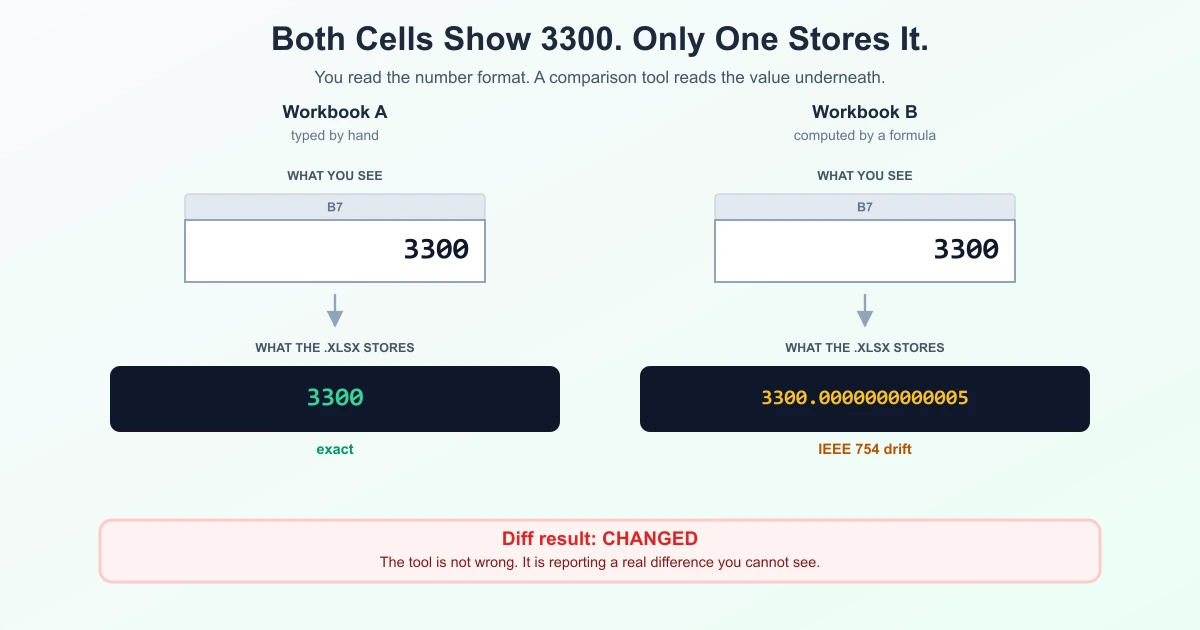
3300. Only one of them stores 3300. A diff tool reads the bottom row.A cell is three things, and you only see one
Open any spreadsheet and a cell looks like a single piece of data. It is actually three:
- The stored value — a 64-bit IEEE 754 double, or a text string. This is what lives in the file.
- The number format — a rendering instruction: two decimals, currency, a date, a percentage. It changes nothing about the stored value.
- The formula, if there is one, plus its cached result — the last value Excel calculated, written into the file so other programs can read it without recalculating.
You read layer 2. A comparison tool reads layer 1 or layer 3. That gap is the whole problem, and it is worth being precise about: the tool is not wrong. It is reporting a genuine difference in the file. It is just a difference you cannot see.
Cause 1: Binary floating point
Excel stores numbers as IEEE 754 doubles — binary fractions. Some perfectly ordinary decimal numbers have no exact binary representation, in the same way that 1/3 has no exact decimal representation. The result is a value that is very slightly off.
Microsoft documents this behaviour openly. Their own example: =(43.1-43.2)+1 returns 0.899999999999999 rather than 0.9.
Here is the part that matters for comparison. Excel's calculation engine works to 15 significant digits, and the grid shows you 15 at most — but the saved .xlsx can hold 16 or 17, because that is what IEEE 754 actually requires. So a cell that displays 3300 may be stored in the file as 3300.0000000000005.
Put two such workbooks side by side — one where the value was typed, one where it was computed — and both show 3300. The file says they differ. Your comparison tool agrees with the file.
Cause 2: The number format is hiding the difference
This is the simplest cause and the most common. A column formatted to two decimal places displays 12.35 whether the stored value is 12.345 or 12.3549. Currency, percentage and rounded formats all do the same thing: they round the display and leave the value alone.
Two workbooks that went through different processing — one exported from a system that rounded, one that did not — can look identical down every column and differ in every row.
The quick check: select a cell and read the formula bar, not the grid. The formula bar shows the stored value. If the grid and the formula bar disagree, formatting is in play.
Cause 3: Dates are numbers wearing a costume
A date in Excel is not a date. It is a number counting days from an epoch, displayed through a date format. 45000 and 15 Mar 2023 can be the same cell — one with a General format, one with a date format.
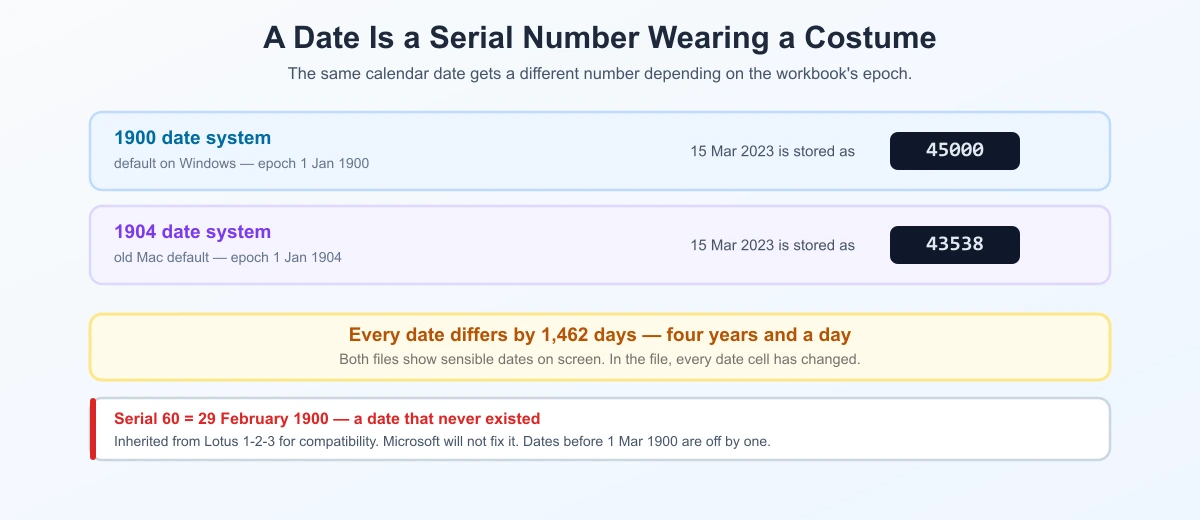
Two quirks of that counting system cause real comparison failures.
The phantom 29 February 1900
Excel treats 1900 as a leap year. It was not — 1900 is divisible by 100 and not by 400, so February had 28 days. Serial number 60 in Excel is 29/02/1900, a date that never existed.
This is deliberate. Lotus 1-2-3 had the bug first, and Excel copied it so that opening a Lotus file produced identical serial numbers. Microsoft documents the decision and has said it will not be fixed, because correcting it would shift every date serial in every existing file by one.
The practical effect: any date before 1 March 1900 is off by one day relative to systems that count correctly. Rare in business data, and genuinely painful in historical datasets.
The 1904 date system — the one that actually bites
Excel supports two epochs. The 1900 system counts from 1 January 1900; the 1904 system counts from 1 January 1904, and was the default on classic Mac Excel. It is a per-workbook setting, and it travels with the file.
Open two workbooks using different date systems and every date is offset by 1,462 days — four years and a day. On screen both show sensible dates. In the file, every single date cell differs. If you have ever compared two exports and found that literally every date changed by about four years, this is why.
Cause 4: Numbers stored as text
1200 and "1200" occupy the same cell space and look nearly identical — the text one is left-aligned by default, which is the only visual clue. Excel flags them with a small green triangle and a "Number stored as text" warning, and most people dismiss it.
For comparison, they are different types with different storage. This happens constantly with CSV imports, database exports, and any column containing leading zeros — product codes, postcodes, account numbers — because storing them as text is the only way to keep the zeros.
The tell: if SUM over a column returns 0 while the numbers are plainly visible, they are text.
Cause 5: Invisible characters and locale
Three variants of the same string, indistinguishable on screen:
"Acme Ltd"and"Acme Ltd "— a trailing space, usually from a database export.- A regular space versus a non-breaking space (U+00A0). Web exports produce these constantly. They render identically and are different characters.
1.234,56versus1,234.56— the same number under German and English locale conventions. If one file was saved in a different locale, the decimal separator flips, and a value may even be read as text.
This is the same class of problem as identical-looking text that compares as different — the character you see is not always the character stored.
The one setting that rewrites your data
Worth knowing about because it is irreversible: Precision as displayed (File → Options → Advanced → "Set precision as displayed").
Normally the number format is cosmetic. Turn this on and Excel permanently truncates every stored value to what its format shows. A cell displaying 12.35 but storing 12.3456 becomes 12.35 in the file, and Microsoft warns that the original values cannot be restored.
If someone enabled it on one workbook and not the other, the two files genuinely differ now — and the comparison is correct to say so.
Which one is biting you?
Work down this table; it is ordered by how often each cause turns up.
| Symptom in the diff | Likely cause | Confirm it |
|---|---|---|
| Small differences in the last decimals | Formatting or floating point | Compare the formula bar, not the grid |
| Every date changed by roughly four years | 1900 vs 1904 date system | Options → Advanced → "Use 1904 date system" |
| Dates appear as five-digit numbers | Number format lost on export | Format the column as a date |
| A whole column differs, values look right | Numbers stored as text | SUM the column — 0 means text |
| One or two text cells differ, look identical | Trailing space or non-breaking space | =LEN(A1) on both — different lengths |
| Everything numeric differs after a re-save | Precision as displayed was enabled | Options → Advanced, check the box |
=LEN() and =EXACT(A1,B1) are the two most useful functions here. EXACT is case-sensitive and does no type coercion, so it tells you what a comparison tool sees rather than what Excel is willing to treat as equal.
What to normalise before comparing two workbooks
Five minutes of preparation removes most of the noise:
- Check both date systems match. This one causes the largest false diffs, and it takes ten seconds to rule out.
- Round deliberately. If two decimals is the real precision, wrap the values in
=ROUND(A1,2)and compare the results — do not rely on the display format to do it. - Convert text numbers. Select the column, use the warning triangle's "Convert to Number", or paste-special-multiply by 1.
- Trim whitespace.
=TRIM()removes ordinary spaces; non-breaking spaces need=SUBSTITUTE(A1,CHAR(160)," ")first, becauseTRIMdoes not touch them. - Decide values or formulas. Comparing formulas answers "did the logic change"; comparing values answers "did the output change". They are different questions — comparing formulas versus values covers when to use each.
Once both sides are normalised, comparing two Excel files behaves predictably: the differences that remain are real ones.
And a general point worth holding on to. A diff never compares two documents — it compares two decodings of two files. In spreadsheets the decoding is the number format. In PDFs it is the text layer. In plain text it is the character encoding. Same trap, three costumes.
Frequently Asked Questions
Why does Excel say two identical cells are different?
Because the cells display the same thing but store different values. The number format rounds the display while leaving the underlying value alone, so 12.345 and 12.3549 both show as 12.35. Select each cell and read the formula bar to see what is actually stored.
Why do my numbers have tiny differences in the last decimal places?
IEEE 754 binary floating point. Some decimal values cannot be represented exactly in binary, so a computed result can land microscopically off. Excel displays 15 significant digits but an .xlsx file can store 16 or 17, so a cell showing 3300 may be stored as 3300.0000000000005.
Why did every date in my comparison change by four years?
The two workbooks use different date systems. Excel supports a 1900 epoch and a 1904 epoch (the old Mac default), and it is a per-workbook setting. Dates are offset by 1,462 days between them. Check File → Options → Advanced → "Use 1904 date system" on both files.
Is 29 February 1900 really a valid date in Excel?
Yes — serial number 60. It never existed; 1900 was not a leap year. Excel inherited the bug from Lotus 1-2-3 to keep date serials compatible, and Microsoft has said it will not be corrected because doing so would shift every existing date by one.
Why does a column of numbers refuse to add up?
They are stored as text. Text numbers are left-aligned by default and usually carry a green triangle warning. SUM ignores them, returning 0. Use the warning triangle's "Convert to Number", or paste-special-multiply by 1.
How do I check whether two cells are genuinely identical?
=EXACT(A1,B1). It is case-sensitive and performs no type conversion, so it reflects what a comparison tool sees. Pair it with =LEN(A1) and =LEN(B1) to catch trailing or non-breaking spaces.
Does changing a cell's number format change its value?
No, with one exception. Formatting is purely cosmetic — unless "Set precision as displayed" is enabled in Options → Advanced, which permanently truncates stored values to their displayed precision. Microsoft warns the original values cannot be recovered afterwards.
Should I compare formulas or values?
Values tell you whether the output changed; formulas tell you whether the logic changed. A workbook can produce identical values from rewritten formulas, or identical formulas from different inputs. Decide which question you are asking before you compare.
Sources
- Microsoft Learn — Floating-point arithmetic may give inaccurate result in Excel, including the
(43.1-43.2)+1example. - Microsoft Learn — Excel incorrectly assumes that the year 1900 is a leap year, on the Lotus 1-2-3 compatibility decision.
- Microsoft Support — Set rounding precision, on "Precision as displayed" being irreversible.
- Numeric precision in Microsoft Excel, on the 15-digit display limit versus stored IEEE 754 precision.