You compare two pieces of text. They look exactly the same on screen. The diff tool insists they are different. Nothing is broken — you have just hit the gap between what text looks like and what it is. Underneath every character is a sequence of bytes, and two different byte sequences can render as the same visible glyph. This guide covers the five ways that happens — encoding, Unicode normalization, byte order marks, line endings, and invisible characters — and how to normalise text so a comparison tells you the truth.
The Root of It: Text Is Bytes
A comparison tool does not see letters. It sees numbers, and it compares those numbers. Rendering — turning numbers into the shapes you read — happens afterwards, in the font and the browser. So two files can carry different numbers and still paint the same picture on your screen.
Every trap below is a version of that one fact.
Trap 1: Unicode Normalization (NFC vs NFD)
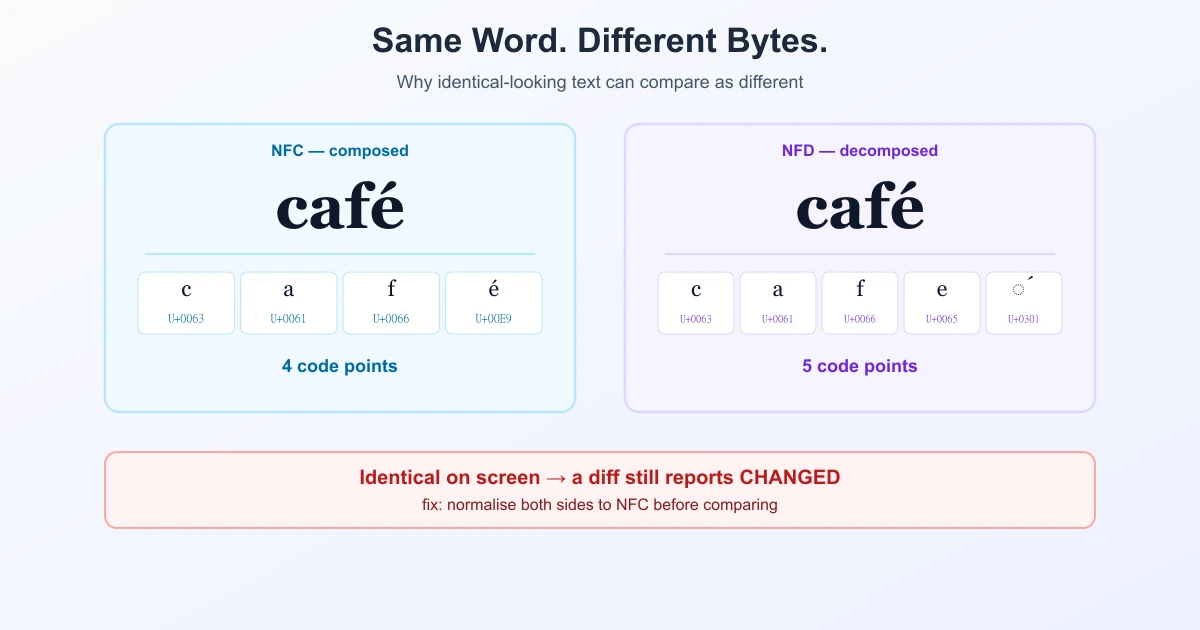
This is the big one, and the least known. Some accented characters can be written in Unicode two different, equally valid ways:
"â"  as one code point      →  U+00E2                 (composed,   NFC)
"â"  as two code points     →  U+0061 + U+0302        (decomposed, NFD)
      (letter a) + (combining circumflex)
Both render identically. Byte for byte they are not the same, so a comparison reports a difference. The Unicode standard calls these forms NFC (composed) and NFD (decomposed), and defines them in UAX #15. As the standard puts it, without a single normalization form you cannot reliably decide whether two strings are equivalent.
Where this bites in real life:
- Cross-platform files. Operating systems have historically handled filename normalization differently, which is a classic source of "the file exists but is not found" bugs.
- Copy-paste between apps. One app may hand you NFC, another NFD, for text that looks identical.
- Any language with accents. French, Spanish, Portuguese, Vietnamese, and many others hit this constantly; plain English rarely does.
The fix: normalise both sides to the same form — NFC by convention. NFC is the default for storage, indexing, and the web; the W3C recommends NFC and advises normalising early (at the sender) rather than late.
Trap 2: Encoding Mismatch
An encoding is the agreement about which bytes mean which characters. Read a UTF-8 file as if it were Latin-1 and every non-ASCII character turns into gibberish:
Intended:  café
Misread:   café        ← UTF-8 bytes interpreted as Latin-1
That garbled output has a name — mojibake — and it is usually a loud, obvious failure. The quieter version is worse: two exports of the same data, one saved as UTF-8 and one as UTF-16 or Latin-1, comparing as entirely different.
The fix: save or export both sides as UTF-8 before comparing.
Trap 3: The Byte Order Mark
Some tools — Windows editors and Excel exports are the usual suspects — prepend an invisible marker to the start of a file called a BOM (byte order mark), U+FEFF. It takes up bytes, renders as nothing, and makes the first line of one file differ from the first line of the other.
The signature symptom is unmistakable: everything matches except line 1, and line 1 looks identical.
The fix: save as "UTF-8 without BOM", which most editors offer explicitly.
Trap 4: Line Endings
Windows ends lines with CRLF (carriage return + line feed); Linux and macOS use LF. The character is invisible either way, but it is real data:
Windows:  line one\r\n
Unix:     line one\n
Compare a file written on Windows against one written on Linux and a strict byte comparison can flag every single line. This is why Git has line-ending configuration at all.
The fix: convert both to the same convention, or use a comparison that ignores whitespace differences.
Trap 5: Invisible Characters
Some characters occupy space in the data while showing nothing, or showing something that looks like an ordinary space:
| Character | Code point | Where it comes from |
|---|---|---|
| Non-breaking space | U+00A0 | Copying from web pages and Word |
| Zero-width space | U+200B | CMS output, some editors |
| Soft hyphen | U+00AD | Typesetting and PDF extraction |
| Curly vs straight quote | U+2019 vs U+0027 | Word autocorrect |
A non-breaking space and a normal space are visually identical and are different characters. This is the reason a sentence copied out of a Word document so often refuses to match the same sentence typed by hand.
The Five Traps at a Glance
| Trap | Symptom | Fix |
|---|---|---|
| Normalization | Accented words differ, look identical | Normalise both to NFC |
| Encoding | Mojibake, or everything differs | Save both as UTF-8 |
| BOM | Only line 1 differs | Save without BOM |
| Line endings | Every line differs | Match CRLF/LF, or ignore whitespace |
| Invisible chars | One word or space differs | Strip NBSP, zero-width, curly quotes |
Normalise, Then Compare
When a comparison shows changes you cannot see, work through this in order:
- Check line 1 only. If just the first line differs, it is a BOM.
- Check whether every line differs. That is line endings or an encoding mismatch, not real edits.
- Check for accents. If only accented words differ, it is NFC vs NFD — normalise both to NFC.
- Turn on "Ignore Extra Whitespace" to remove spacing and line-ending noise in one step.
- Re-type a suspect word by hand. If the difference vanishes, an invisible character was hiding in the original.
Then compare again. Whatever survives normalisation is a genuine change.
Why Diff Tools Do Not Just Fix This
A reasonable question: why not normalise automatically? Because normalising is destructive, and sometimes the byte difference is the very thing you are hunting. If a config file breaks in production because of a stray non-breaking space, a tool that silently normalised it away would have hidden your bug.
So the honest design is what most tools do: compare exactly by default, and give you explicit switches — ignore whitespace, ignore case — for when you want to look past the noise. The same principle shows up in JSON comparison, where key order and formatting create differences the data does not have.
None of this touches the algorithm itself. Myers, patience, and histogram all compare the units they are given; encoding decides what those units are. Garbage in, differences out. When you are ready to check two versions, you can compare text online with whitespace ignoring switched on.
Frequently Asked Questions
Why does my diff show differences when the text looks identical?
Because the underlying bytes differ even though the rendered glyphs match. The usual causes are Unicode normalization (NFC vs NFD), an encoding mismatch, a byte order mark, different line endings, or invisible characters such as a non-breaking space.
What is the difference between NFC and NFD?
NFC stores an accented character as a single composed code point (for example â as U+00E2); NFD stores it decomposed as a base letter plus a combining mark (U+0061 + U+0302). They render identically but are different byte sequences, so unnormalised text compares as different.
Which normalization form should I use?
NFC. It is the default for storage, indexing, and the web, and the W3C recommends NFC and normalising early — at the sender — rather than late.
What is a BOM and why does it break comparisons?
A byte order mark (U+FEFF) is an invisible marker some editors add at the start of a file. It occupies bytes but renders as nothing, so the first line differs while looking identical. Save the file as "UTF-8 without BOM" to remove it.
Why does every line show as changed?
Usually line endings: Windows uses CRLF and Unix systems use LF, so a strict comparison flags every line. It can also mean the two files use different encodings. Match the line endings or enable whitespace ignoring.
How do I find an invisible character in my text?
Retype the suspect word by hand and compare again — if the difference disappears, an invisible character was present. Non-breaking spaces (U+00A0), zero-width spaces (U+200B), soft hyphens (U+00AD), and curly quotes (U+2019) are the common ones, and usually arrive by copying from Word or a web page.
Should a comparison tool normalise text automatically?
No, not by default. Normalising is destructive, and sometimes the invisible difference is the bug you are looking for. Exact comparison with optional switches — ignore whitespace, ignore case — is the safer design.
Sources
Related Reading
Compare Text Without the Noise
Paste two versions, switch on whitespace ignoring, and see only the changes that are real. Free and private.
Try TextCompareo