To compare two versions of a landing page's HTML, paste the old markup into one panel and the new markup into the other, then let a diff tool highlight every added tag, removed element, and edited attribute. Copy the raw HTML source of each version (not a saved file, which strips the tags) into TextCompareo and you will see exactly what changed, down to a single word inside a headline or a query string on a button.
This comes up more often than people expect. A landing page gets edited by a developer, a marketer, an A/B testing tool, or an agency, and suddenly a form stops submitting or a conversion rate drops. The visible page might look almost identical, but something in the code changed. A line-by-line comparison finds it in seconds.
Why Compare Landing Page HTML in the First Place?
Landing pages are high-stakes. A small markup change can move a conversion rate up or down, break a form, or quietly add a tracking script you did not approve. Here is where a code comparison earns its keep:
- An A/B testing tool published a "winning" variant and you want to see what it actually changed in the code, not just the reported lift.
- A developer pushed an update and the page now behaves differently. You compare the deployed HTML against the last version you trusted.
- An agency sent back an "optimized" page and you need to confirm they only touched what was agreed, and did not slip in extra scripts.
- You are reviewing a pull request and want a plain-language view of the markup diff before you approve it.
In every case the question is the same: what exactly is different between these two versions? Reading two HTML files side by side by eye is slow and unreliable. A diff tool answers it instantly.
How to Compare Two HTML Versions (Step by Step)
Step 1: Copy the Raw HTML of Each Version
Get the actual source markup for both versions. In your browser you can right-click the page and choose View Page Source, then copy it. From a code editor, just select all and copy. If you have the files, open them in a text editor rather than a browser so you copy the tags, not the rendered text.
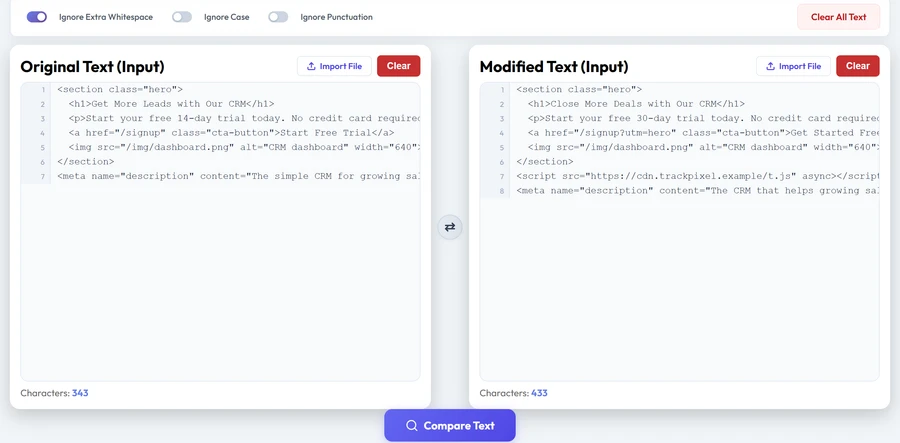
One important note: paste the HTML as text, do not import it as a file. When you import an .html file, TextCompareo extracts the readable text and strips the tags. That is great for comparing content, but wrong for comparing code. For a markup comparison you want the raw source, so paste it directly.
Step 2: Paste Both Versions Into TextCompareo
Open TextCompareo. Put the original version in the left panel and the new version in the right panel.
Step 3: Click Compare and Read the Diff
Press Compare Text. Every difference is highlighted at the word level:
- Green for markup that was added
- Red for markup that was removed
- Purple for lines that were changed
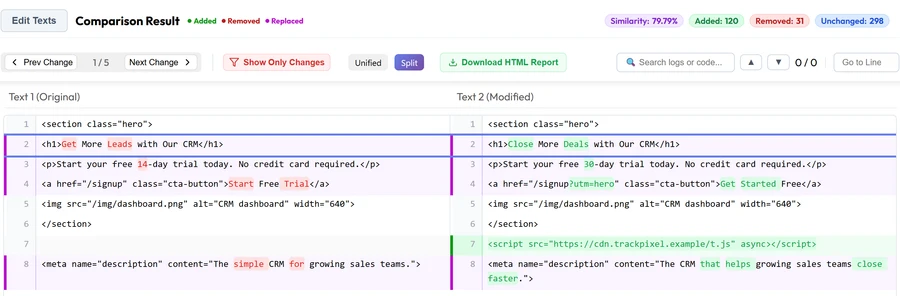
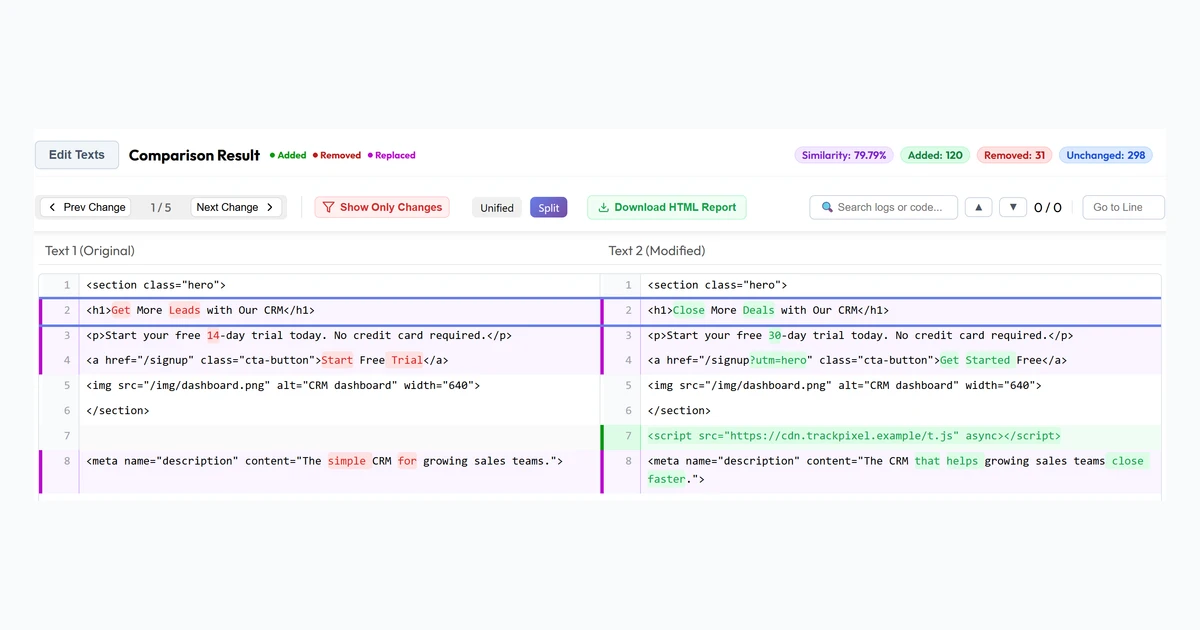
Look at the example above. In a few seconds you can read the whole story of the edit: the <h1> headline changed from "Get More Leads" to "Close More Deals", the free trial went from 14 days to 30, the CTA link gained a ?utm=hero parameter and new button text, the meta description was rewritten, and a brand new tracking script appeared on line 7 that was not in the original. That last one is the kind of change that is invisible on the rendered page but very much worth knowing about.
Use Next Change to jump between edits, or turn on Show Only Changes to hide the lines that stayed the same.
Code Diff vs. Visual Diff: Know the Difference
This is the one thing to be clear about. A text comparison shows what changed in the code, not what changed on the screen. Those are not always the same.
A tiny code change can have a big visual effect. Swap one CSS class and the whole layout can shift, even though the diff shows a single edited word. The reverse is true too: a large block of reformatted or reordered markup can produce zero visible difference on the page.
So use each tool for its job. A code diff like TextCompareo is the right tool for "what exactly did this edit change in the markup" — reviewing a change, auditing an agency's work, or catching an injected script. To confirm the page still looks right, take a screenshot of both versions and compare those visually. The two checks answer different questions, and a careful review uses both.
How to Get a Cleaner HTML Diff
Raw HTML can be messy to compare because the same markup can be written on one line or spread across fifty. If one version is minified and the other is nicely formatted, the diff will be full of noise that hides the real changes. A few habits keep it clean:
- Format both sides the same way. If one version is minified, run it through an HTML formatter first so both are indented consistently. Then the diff reflects real changes, not formatting differences.
- Compare the same scope. Diff the full page against the full page, or one section against the matching section, not a fragment against a whole document.
- Ignore whitespace when it helps. Turn on "Ignore Extra Whitespace" so trailing spaces and indentation shifts do not show up as changes.
- Strip unrelated dynamic values. Things like cache-busting version numbers or timestamps change on every build and add noise. Compare the parts that matter.
Remove Secrets Before Comparing Page Code
Landing page HTML can contain internal tracking IDs, unreleased campaign copy, or—if the page was built unsafely—credentials in inline scripts. Remove API keys, tokens and customer data before using any comparison website. TextCompareo's comparison logic runs in the browser, which reduces application-server exposure, but extensions, clipboard sync, analytics and managed-network software remain separate paths. Use the checks in our browser privacy guide.
Frequently Asked Questions
How do I compare two versions of a web page's HTML?
Copy the raw HTML source of each version (right-click the page and choose View Page Source, or copy from your editor), paste the old version in the left panel and the new one in the right panel of TextCompareo, and click Compare. Every added, removed, and changed line is highlighted.
Should I paste the HTML or import the file?
Paste it. Importing an .html file makes the tool extract the readable text and strip the tags, which is for comparing content. To compare the markup itself, paste the raw source code directly.
Will it show me what changed visually on the page?
No. A text diff shows what changed in the code, not on the rendered screen. A one-word CSS change can shift the whole layout. Use a code diff to review the markup, and a screenshot comparison to confirm the page still looks correct.
My diff is full of noise. How do I fix it?
This usually means the two versions are formatted differently, for example one is minified and the other is not. Run both through an HTML formatter so they are indented the same way, and turn on "Ignore Extra Whitespace" before comparing.
Can I compare a minified landing page against a formatted one?
You can, but format the minified side first for a readable result. Comparing a single-line minified file against a multi-line formatted file will show almost everything as different even when the content is identical.
Is it safe to paste landing page code with tracking IDs or keys?
Do not paste live keys into any website. Remove secrets first, follow the page owner's handling policy, and use a local editor or command-line diff for restricted source. Browser-side comparison reduces one exposure path; it is not a blanket security guarantee.
Can this catch an unexpected script added by an A/B tool or agency?
Yes, and it is one of the best uses for it. A newly added <script> tag shows up as an added line in the diff, even though it is invisible on the rendered page. Comparing the before and after markup surfaces it immediately.
Related Reading
See Exactly What Changed in Your Page
Paste two redacted versions of your landing page HTML and spot markup changes without signing up.
Compare HTML Now