To compare two RTF files online, drop both files into a comparison tool and let it highlight every word that was added, removed, or changed. Open TextCompareo, add each .rtf file, and click Compare. The one thing worth deciding first is what you want to compare: the readable text of the document, or the raw RTF markup underneath it. This guide explains the difference, and it starts with what an RTF file actually is — because that is what makes RTF comparison behave the way it does.
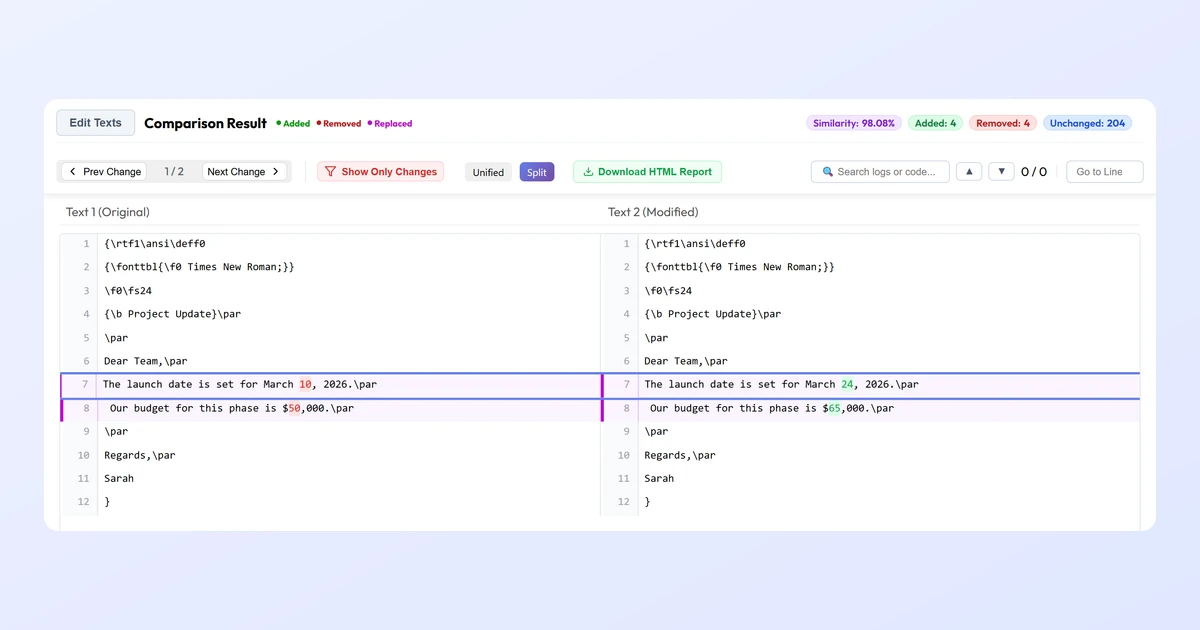
What an RTF File Actually Is
RTF stands for Rich Text Format. Microsoft introduced it in 1987 as a way to move formatted text between different programs and operating systems without losing the formatting. The key thing to understand: an RTF file is plain text. If you open one in a code editor instead of a word processor, you can read it. The formatting is not hidden in a binary blob — it is written out as visible codes right next to the text.
Those codes are called control words. Each one starts with a backslash and tells the reader how to format what follows. A few you will see constantly:
\rtf1— the header that marks the file as RTF version 1, right after the opening brace.\band\i— bold and italic.\par— a new paragraph.\f0,\fs24— font number 0, font size 24 half-points (12pt).
The whole document is wrapped in curly braces { }, which define groups, and it usually opens with a font table (\fonttbl) and sometimes a color table (\colortbl). So a tiny RTF file literally looks like this:
{\rtf1\ansi\deff0
{\fonttbl{\f0 Times New Roman;}}
\f0\fs24 {\b Project Update}\par
The launch date is March 10, 2026.\par
}
One neat side effect of this design: older readers simply ignore control words they do not recognize, which is why RTF stays readable across decades of software.
RTF vs. DOCX vs. Plain Text
Knowing where RTF sits helps you pick the right comparison approach.
| Format | Under the hood | Readable as text? | Holds formatting? |
|---|---|---|---|
| RTF | Plain text with control-word markup | Yes — codes are visible | Yes |
| DOCX | A ZIP archive of XML files | No — must be unzipped/parsed | Yes |
| TXT | Just characters | Yes | No |
Because RTF is readable text, you can compare it two different ways — and that choice is the whole trick to a clean RTF diff.
Two Ways to Compare RTF: Content vs. Markup
When you compare two RTF files, decide what you actually care about:
- Compare the content (the readable words). Import each
.rtffile into TextCompareo and it extracts the plain text, dropping the control words. You get a clean comparison of what the document says — perfect for catching a changed date, a reworded sentence, or a new paragraph. - Compare the markup (the raw RTF). Open both files in a text editor, copy the raw source, and paste it in. Now you are comparing the formatting codes as well as the text — useful when you need to know whether the styling changed, not just the words.
Here is the catch worth knowing: two RTF files can show identical text on screen yet have very different control words underneath, because different editors write RTF differently. So a raw-markup diff of "the same" document can light up with changes that are pure formatting noise. If you only care about the wording, compare the content. Reach for the raw markup only when formatting is the point.
How to Compare Two RTF Files (Step by Step)
Step 1: Add Both RTF Files
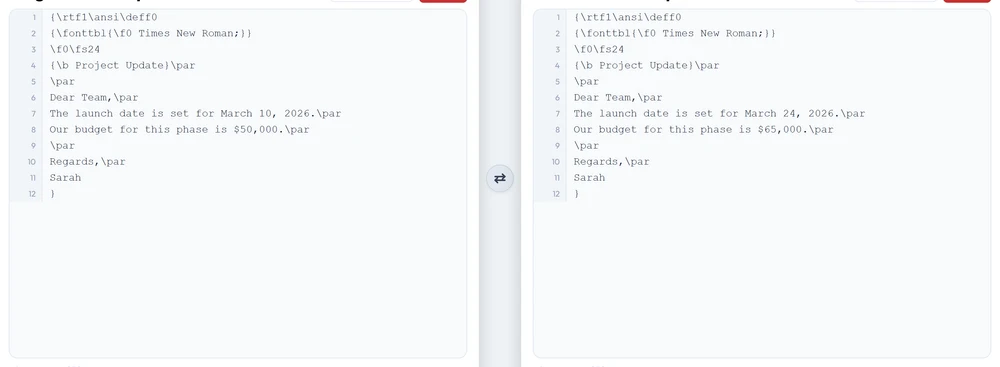
Open TextCompareo. To compare the wording, use the Import buttons to load each .rtf file — the tool pulls out the readable text. To compare the raw markup instead, open both files in a text editor, then copy and paste the source into the left and right panels.
Step 2: Compare and Read the Differences
Click Compare Text. Every difference is marked at the word level — green for added, red for removed, purple for changed — so the real edits jump out even when they sit between control words.
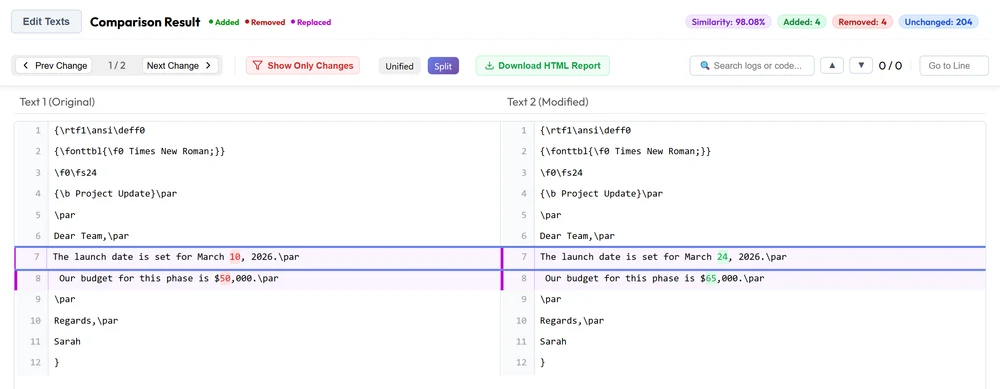
Use Next Change to step through each edit, or turn on Show Only Changes to hide the lines that stayed the same.
How to Read a Raw RTF Diff
If you are comparing the raw markup, a quick mental key makes the diff readable. Control words are formatting; the plain words between them are your content. When the diff highlights something, ask which kind it is:
- A change inside a
\wordcode (like\fs24becoming\fs28) is a formatting change — the font size grew. - A change in the plain text between codes is a content change — the actual wording moved.
- A new
\parmeans a paragraph break was added.
Most of the time you are hunting content changes, and they stand out because they are the human-readable bits. The control words around them stay the same, so the highlight lands right on the word that moved.
Tips for a Cleaner RTF Comparison
- Match your intent to the method. Comparing wording? Import the files. Comparing styling? Paste the raw source.
- Use the same editor for raw comparisons. If you must diff raw RTF, save both versions from the same program so their control words are written the same way and only real changes show.
- Ignore whitespace. Turn on "Ignore Extra Whitespace" so line-break and spacing differences do not register as changes.
- For pure content, convert to text. If the raw markup is too noisy, importing the RTF (which strips the codes) gives you the cleanest possible view of what the words actually are.
Check the Document Policy First
RTF files often contain letters, contracts, résumés, or reports. TextCompareo performs supported-file parsing and comparison in the browser, which reduces application-server exposure. It does not make confidential use automatically approved: extensions, clipboard sync, analytics and managed-network software remain separate paths. Follow the document owner's policy and use an approved local tool when required. See our browser privacy checklist.
Frequently Asked Questions
How do I compare two RTF files online?
Open TextCompareo, add each .rtf file with the Import buttons (or paste the raw source), and click Compare. Every added, removed, and changed word is highlighted so you can see exactly what changed between the two versions.
Should I import the RTF or paste the raw source?
Import the file if you want to compare the readable content — the tool strips the formatting codes and compares the words. Paste the raw source if you specifically want to compare the RTF markup and formatting, not just the text.
Why does my raw RTF comparison show changes when the text looks the same?
Different word processors write RTF control words differently, so two files that display identically can have different markup underneath. Those are formatting differences, not content changes. To compare only the wording, import the files instead of pasting the raw source.
What is the difference between RTF and DOCX for comparison?
RTF is plain text with visible control words, so its raw source is human-readable. DOCX is a ZIP archive of XML and cannot be read directly. For both, comparing the extracted text is the reliable way to see content changes.
Is it safe to compare confidential RTF documents?
Not by default. Confirm that your policy permits browser tools, remove sensitive fields where possible, and inspect the data path with harmless sample text. For restricted contracts or personal data, prefer an organisation-approved local workflow.
Can I compare an RTF file against a Word or plain-text file?
Yes. Import the RTF on one side and the Word or text file on the other; the tool extracts the readable text from each and compares the content directly, regardless of the original formats.
Related Reading
Compare Your RTF Files Now
Add two supported RTF files and review content or raw-markup changes without signing up.
Compare RTF Files