A PDF's text layer is the mapping that says which Unicode character each drawn glyph was meant to be. Without it you have a picture of words. With it you have something a computer can search, copy and compare. The catch is that a PDF can have a text layer that is present but wrong — which is why a file that looks perfect on screen can still produce nonsense when you copy from it.
This matters the moment you try to do anything automated with a PDF: search it, extract it, feed it to an LLM, or compare two versions of it. This article explains what the layer actually is, the three states a PDF can be in, and how to tell which one you are holding.
A PDF does not store text. It stores drawing instructions.
This is the single fact that explains everything else.
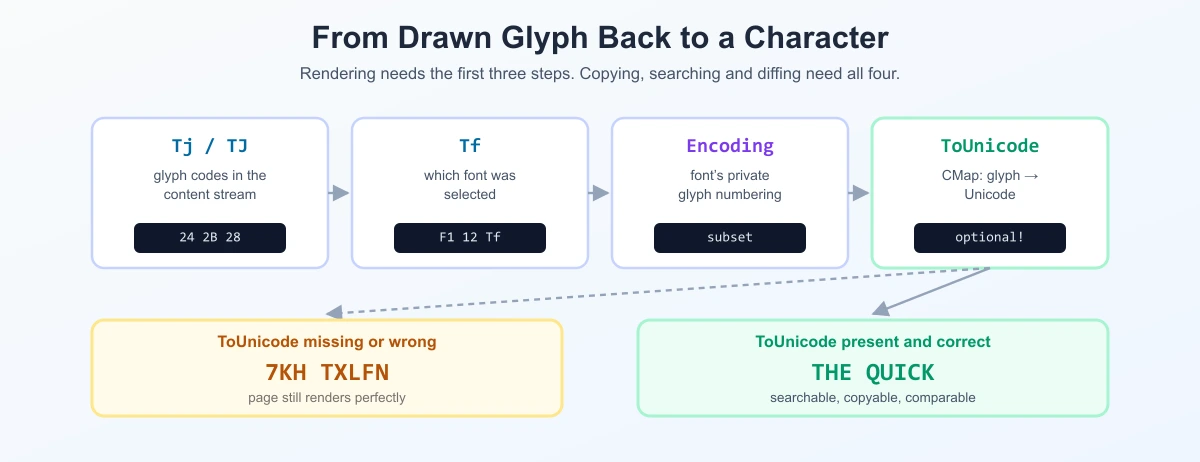
Inside a PDF page is a content stream — a sequence of operators that tell a renderer what to paint and where. Text is painted with operators like Tf (choose a font), Td or Tm (position the cursor), and Tj or TJ (show a string of glyphs). A line of text in a PDF is closer to a series of "stamp this glyph at these coordinates" commands than to a sentence in a Word file.
The bytes handed to Tj are not Unicode. They are glyph selectors — indices into whichever font was chosen by the preceding Tf. Byte 0x24 might mean "draw the glyph in slot 36 of this font", and slot 36 might be a capital A, a Greek delta, or a company logo. The PDF only needs enough information to draw correctly. Being readable by a machine is a separate problem.
So when a viewer shows you crisp, selectable text, two independent things have gone right: the glyphs were drawn, and something told the viewer what those glyphs mean. That second thing is the text layer.
The text layer is a translation table
The bridge from glyph back to character is a ToUnicode CMap — an optional entry in the font dictionary that maps each glyph code to one or more Unicode code points. When a PDF is generated properly, the producer writes this table alongside the font. When you press Ctrl+F or copy a paragraph, the viewer walks the content stream, collects glyph codes, and runs them through ToUnicode to recover actual characters.
Two consequences follow, and both surprise people:
- The layer is optional. A PDF is completely valid without it. It will look identical and be unusable to any tool that needs the words.
- The layer can disagree with what you see. Nothing forces ToUnicode to be correct. If it maps the glyph for "T" to the code point for "7", the page still renders a T — and copying still gives you a 7.
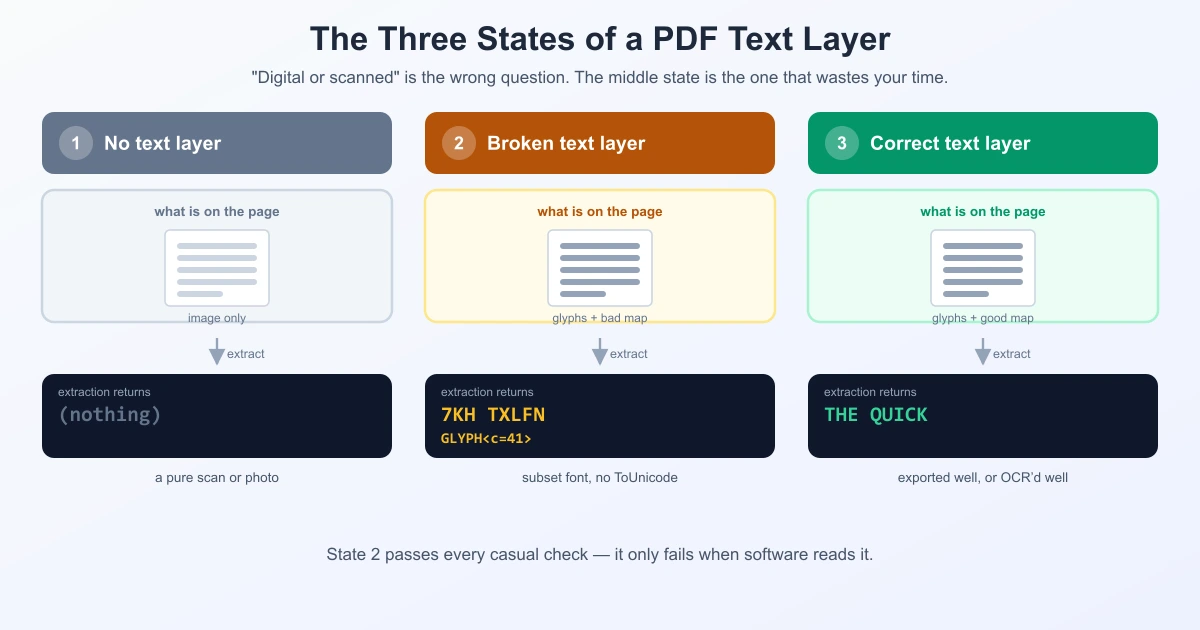
That second case produces the classic symptom: you copy THE out of a perfectly clean PDF and paste 7KH. The characters are shifted because the font used a custom encoding and the ToUnicode table was either missing or built wrong. Nothing is wrong with the picture. Everything is wrong with the translation.
Three states, not two
Most articles frame this as "digital PDF vs scanned PDF". That framing is too coarse and it hides the case that actually wastes people's time.
| State | What extraction returns | Typical cause |
|---|---|---|
| 1. No text layer | Nothing, or a handful of stray characters | A pure scan or photo — the page is one big image |
| 2. Broken text layer | Gibberish, shifted letters, missing spaces, GLYPH<c=…> placeholders | Subset font with a custom encoding and no usable ToUnicode map |
| 3. Correct text layer | The words, in reading order | Exported properly, or OCR'd well |
State 1 is obvious within seconds — you try to select text and the cursor does not catch anything. State 3 is what you want. State 2 is the expensive one, because the file passes every casual check: it looks right, text highlights when you drag over it, and the file size suggests real text rather than a scan. It only fails when something actually reads it.
Note also that "digital-born" and "has a correct text layer" are not the same thing, in either direction. A PDF exported straight from InDesign can land in state 2. A scan of a 1970s memo can sit comfortably in state 3 after OCR.
How OCR adds a text layer without changing the picture
The trick is neat once you see it: OCR does not replace the scanned image. It draws the recognised words on top of it, invisibly.
PDF has a text rendering mode operator, Tr. Mode 0 fills the glyphs normally. Mode 3 — written 3 Tr — draws nothing at all. The text is positioned, sized and present in the content stream, but paints no pixels. Selection, search and extraction all still see it.
So an OCR'd scan is a sandwich: the original page image underneath, and an invisible text layer positioned on top so each recognised word sits over the pixels it came from. That is exactly why your cursor highlights a rectangle in the right place on a scan — you are selecting invisible text, not the image.
OCRmyPDF documents this directly: its "sandwich" renderer uses Tesseract's text-only PDF output and lays it over the original page, so the visual result is untouched and the text becomes available. Adobe Acrobat, ABBYY and the rest all do a version of the same thing.
Two practical consequences:
- An OCR text layer is a guess. It is only as accurate as the recognition was. A poor scan gives you state 2 by another route — a layer that exists but does not match the page.
- Removing the image does not remove the text. If a document was redacted by drawing black boxes over it, the text layer underneath is very often still there and still extractable. Boxes are drawn on top; they delete nothing.
Why a perfectly good PDF still extracts as gibberish
State 2 usually comes from one of four causes.
Subset fonts with custom encoding
To keep files small, producers embed only the glyphs a document actually uses, and often renumber them. The result is a private encoding that means nothing outside this one file. Without a ToUnicode map to undo it, extraction returns whatever those private codes happen to look like as characters — the 7KH effect.
Identity-H without ToUnicode
Composite fonts using the Identity-H encoding pass glyph IDs straight through with no implied character meaning whatsoever. Here the ToUnicode map is not a nicety — it is the only route back to text. When it is missing, extractors typically emit placeholders such as GLYPH<c=…>, which is at least honest about having failed.
Ligatures
Typographic ligatures replace character pairs with a single glyph: fi, ffi, fl. Correct extraction needs a one-to-many mapping so that glyph expands back to two or three characters. If the producer maps it one-to-one, or not at all, "office" comes out as "oce" or with an odd symbol where the ligature was. This is why searching a PDF for a word containing "fi" sometimes finds nothing while the word is plainly visible.
No spaces in the content stream
Space characters are frequently not stored at all. Word gaps are produced by moving the cursor — the numeric offsets inside a TJ array. An extractor has to infer word boundaries from those offsets. Get the threshold wrong and you get severalwordsruntogether, or spaces sprinkled inside words. The words are right; the spacing is a reconstruction.
How to tell which state your PDF is in
Three checks, in order of effort.
- Select and copy a line. Nothing selects → state 1. Selects and pastes correctly → state 3. Selects but pastes wrong → state 2. This catches the overwhelming majority of cases in about five seconds.
- Search for a word you can see. Pick something mid-page and Ctrl+F it. A visible word that cannot be found is the signature of a broken or misaligned layer. Try a word containing "fi" or "ffi" too — that is where ligature problems surface.
- Extract it with a tool.
pdftotext file.pdf -(from Poppler) prints exactly what an automated consumer will see, with none of the viewer's help. If that output is clean, anything downstream will be fine.
The order matters. Most people jump to step 3 and debug their extraction library, when a five-second copy-paste would have shown that the file itself was the problem.
What this means when you compare two PDFs
Every PDF comparison tool — ours included — works on extracted text, not on the rendered page. That makes the text layer the foundation the whole comparison rests on, and it explains behaviour that otherwise looks like a bug:
- State 1 files produce an empty diff. There is nothing to compare. Run OCR first; our guides on comparing scanned PDFs and choosing an OCR tool cover that path.
- State 2 files produce a diff full of false differences. Two versions of the same document, exported by different producers, can extract with different spacing or different ligature handling — and every one of those shows up as a change. The document did not change; the translation did.
- Two visually identical pages can differ in extraction order. Multi-column layouts, tables and footnotes have no guaranteed reading order in the content stream. Extractors reconstruct it, and two files can be reconstructed differently.
The practical rule: before trusting a PDF diff, copy a paragraph out of both files and look at it. If either side pastes badly, fix that first — re-export or re-OCR — or the comparison is measuring the extraction, not the document. Once both sides extract cleanly, comparing two PDFs behaves like comparing any other text.
This is also a specific case of a general truth about diffs: what you compare is never the file, it is a decoding of the file. The same thing happens with character encodings in plain text, where two identical-looking files differ because of how their bytes were interpreted.
Frequently Asked Questions
What is a text layer in a PDF?
It is the information that maps the glyphs drawn on the page back to Unicode characters, primarily through a ToUnicode CMap in each font. A PDF's content stream stores instructions to draw glyphs, not characters, so without this mapping the page is readable by humans but not by software.
How do I know if my PDF has a text layer?
Try to select a line of text with your cursor. If nothing highlights, there is no text layer. If it highlights but pastes as gibberish, the layer exists but is broken. For a definitive answer run pdftotext file.pdf - and read the output — that is what any automated tool will see.
Why does copying from a PDF give gibberish?
Almost always a font encoding problem. The document uses a subsetted or Identity-H font with a private glyph numbering, and the ToUnicode map that would translate it back is missing or wrong. The page renders correctly because rendering only needs glyph shapes; copying needs the mapping.
Can a scanned PDF be searchable?
Yes, after OCR. The OCR tool adds recognised text in rendering mode 3 (3 Tr), which is invisible, positioned over the matching part of the page image. The scan looks unchanged but is now searchable, selectable and comparable.
Is a digital PDF always better than a scanned one?
Not automatically. A digital-born PDF with a broken ToUnicode map extracts worse than a clean scan that has been OCR'd well. What matters is whether the text layer is correct, not how the file was created.
Why does searching a PDF miss words I can clearly see?
Usually ligatures or missing spaces. If "fi" is stored as a single glyph without a one-to-many Unicode mapping, "office" is not in the text layer as "office". Word gaps produced by cursor movement rather than space characters cause similar misses.
Does deleting the image from a scanned PDF remove the OCR text?
No. The invisible text layer is separate from the image and survives. This is also why drawing black boxes over sensitive content is not redaction — the underlying text usually remains extractable.
Why do two identical PDFs show differences when compared?
Because comparison runs on extracted text. Different producers can extract with different spacing, different ligature handling, or a different reading order for multi-column pages. The visible documents match; their extractions do not.
Sources
- OCRmyPDF — Advanced features, on the "sandwich" renderer and invisible OCR text layers.
- ComPDFKit — What's so hard about PDF text extraction?, on content-stream operators, font encodings and ToUnicode.
- Docling issue #2170, a worked example of subsetted fonts producing
GLYPH<c=…>placeholders on extraction. - pdf-inspector, a library built specifically to classify PDFs as scanned versus text-based before routing them.