If you want to compare two Word documents that already have Track Changes turned on, there is one thing you must know first: Word's own Compare tool will quietly treat every existing tracked change as if it were already accepted. Your careful edit history gets flattened before the comparison even runs. The fix is to decide what to do with those tracked changes on purpose, then compare clean copies. This guide shows you exactly how, and how to get a reliable side-by-side result in your browser with TextCompareo.
This trips up a lot of people, especially in legal and editorial work where documents pass through several rounds with Track Changes left on the whole time. Let's break down why it happens and what to do instead.
Why Track Changes Breaks a Comparison
A Word document with Track Changes on is not one version of your text. It is two versions stored in the same file at once: the original wording, plus every insertion and deletion layered on top. On screen you see the markup. Underneath, the file holds both states.
That is fine for editing. It is a problem for comparing, because a comparison needs a single, settled version of each document to line up against the other. When the settled state is ambiguous, the result is unreliable.
Two specific things go wrong:
- Word's Compare feature silently "accepts" the changes. Microsoft's documentation is clear that its Review > Compare tool assumes any existing tracked changes are accepted before it compares. So the edits you were still reviewing get baked in without asking you.
- Copying the text gives you a jumble. If you select and copy from a document with Track Changes showing, you can pull in both the deleted words and the inserted words at the same time. Paste that anywhere and you get sentences with duplicated, contradictory phrases.
Either way, you end up comparing something other than the actual document you meant to compare.
Step 1: Decide What Happens to the Tracked Changes
Before any comparison, make a deliberate choice for each document. Open it in Word, go to the Review tab, and pick one:
- Accept All Changes — if the edits are approved and you want the final, cleaned-up version.
- Reject All Changes — if you want the original wording as it stood before those edits.
The important part is that you choose, rather than letting a tool choose for you. If you need to keep the marked-up history for the record, save a separate copy first, then accept or reject on the working copy. Do this for both documents so you are comparing two settled versions, not two half-edited ones.
Step 2: Get the Clean Text From Each Version
Now that each document has a single settled state, pull the text out. With Track Changes resolved, a plain Ctrl+A then Ctrl+C gives you clean text with no leftover deletion or insertion fragments.
Turn Track Changes off as well (Review > Track Changes) so nothing new gets marked up while you work. If you skip Step 1 and copy with changes still pending, you will bring the jumble along with you, so do not shortcut this.
Step 3: Compare the Two Clean Versions Online
Open TextCompareo. Paste the first document's text into the left panel and the second into the right panel.
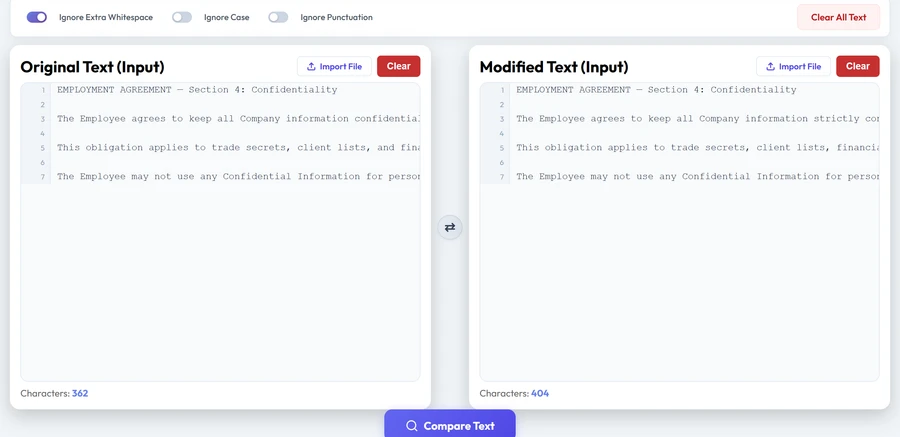
Click Compare Text. TextCompareo lines up the two versions and marks every difference:
- Green for text that was added
- Red for text that was removed
- Purple for text that was changed
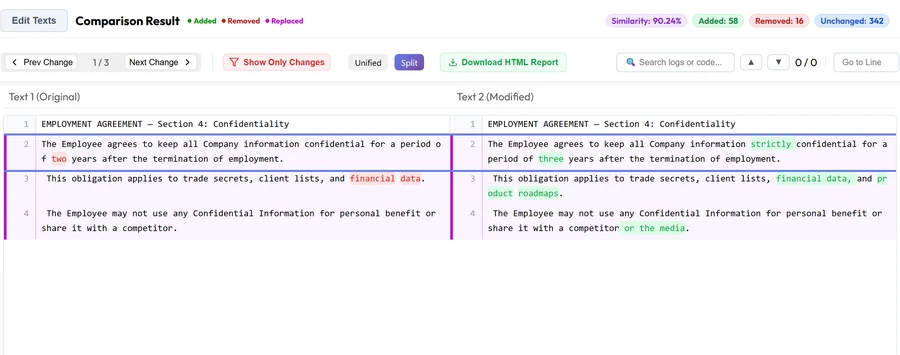
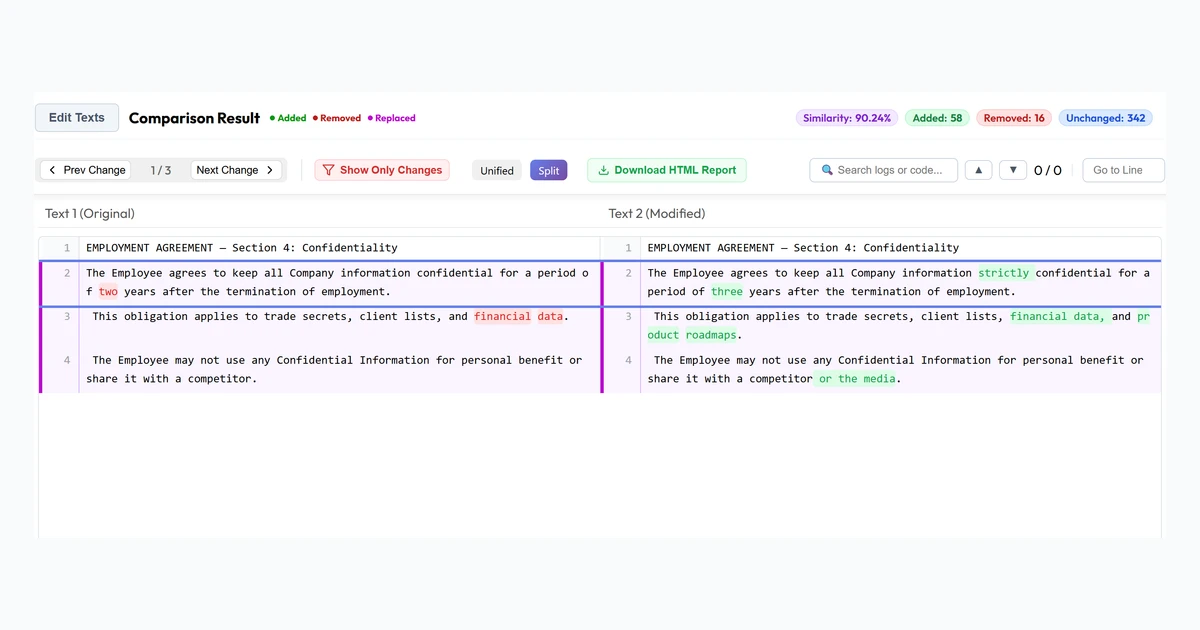
Because you settled the tracked changes yourself in Step 1, this redline reflects the real difference between the two versions, not a guess made by a tool that flattened your edits behind your back. Use Next Change to jump between edits, or Show Only Changes to hide everything that stayed the same.
Word's Compare vs. Doing It This Way
Word's Compare is a capable tool when both files are clean to begin with. The moment existing tracked changes enter the picture, though, its "accept everything first" behavior is exactly what you do not want. Handling the changes yourself and comparing clean text puts you back in control.
A Note on Confidential Documents
Contracts, offer letters, and internal policies often contain confidential or privileged material. TextCompareo performs the comparison in browser-side JavaScript, which reduces exposure to its application server, but that alone does not establish privilege, compliance or policy approval. Extensions, clipboard sync, analytics and managed-network software are separate paths. Use an approved local workflow when required; our browser privacy checklist explains what to review.
Frequently Asked Questions
Does Word compare documents that already have track changes?
It runs, but not the way you might expect. Word's Review > Compare tool treats any existing tracked changes as accepted before comparing, so your pending edits get flattened. To keep control, accept or reject the changes yourself first, then compare clean versions.
Why does my comparison show duplicated or garbled text?
You most likely copied text while Track Changes was still showing both deletions and insertions. Accept or reject all changes first, turn Track Changes off, then copy. The text will come out clean.
How do I keep the marked-up history and still compare?
Save a separate copy of each document before you accept or reject anything. Work on the copies for the comparison, and keep the originals with their tracked-change history intact for your records.
Can I compare two clean Word versions without Microsoft Word?
Yes. Once you have the settled text, you do not need Word to compare it. Paste both versions into TextCompareo and it highlights every difference in your browser, free and with no account.
Is it safe to compare a confidential contract this way?
Do not assume so solely because the comparison is browser-side. Check privilege rules, the document owner's policy, extensions, clipboard sync and the managed network. Use an organisation-approved local tool for restricted material unless the policy explicitly permits a browser workflow.
Should I accept or reject the tracked changes before comparing?
It depends on what you want to see. Accept all changes if you want the finalized version. Reject all changes if you want the wording as it was before those edits. The key is to choose deliberately for both documents so you compare two settled versions.
What if I only need to compare one paragraph or clause?
Copy just that clause from each settled version and paste the two into TextCompareo. You do not have to compare the entire document, which is handy for reviewing a single contract clause across drafts.
Related Reading
Compare Your Documents the Clean Way
Settle the tracked changes, paste both versions, and review the extracted-text differences without signing up.
Compare Documents Now