Visual Studio Code 1.132, released on 5 August 2026, added an experimental feature that sounds small and is quietly interesting: you can now review changes in rendered Markdown instead of raw markup. The modified document stays editable while gutter indicators mark what was added, changed, and deleted. It is a small shift with a real idea behind it — that the thing you want to compare is not always the thing stored in the file.
What Actually Shipped
Three diff-related changes landed in this release:
- Markdown diffs in the hybrid Markdown editor (experimental). VS Code's own note is precise: "The modified document remains editable, while gutter indicators highlight added, changed, and deleted content." You switch views from the editor type dropdown — text diff on one side, the Markdown editor with diff annotations on the other.
- Faster switching between editor types. A new
breadcrumbs.showEditorTypesetting lets you flip between the available regular and diff editors from the breadcrumbs, instead of digging into the Reopen Editor With command. - Separate diff priority for custom editors (proposed API). Extensions can now set different priorities for text and diff editors through
customEditors.priority, with diff editors defaulting toexplicit. In plain terms: a custom editor can stay the default for normal editing while diffs open in the built-in text diff.
Why It Matters: Source vs. Output
Here is the idea worth taking away. A diff always has to pick a target — and for formats like Markdown, there are two reasonable answers.
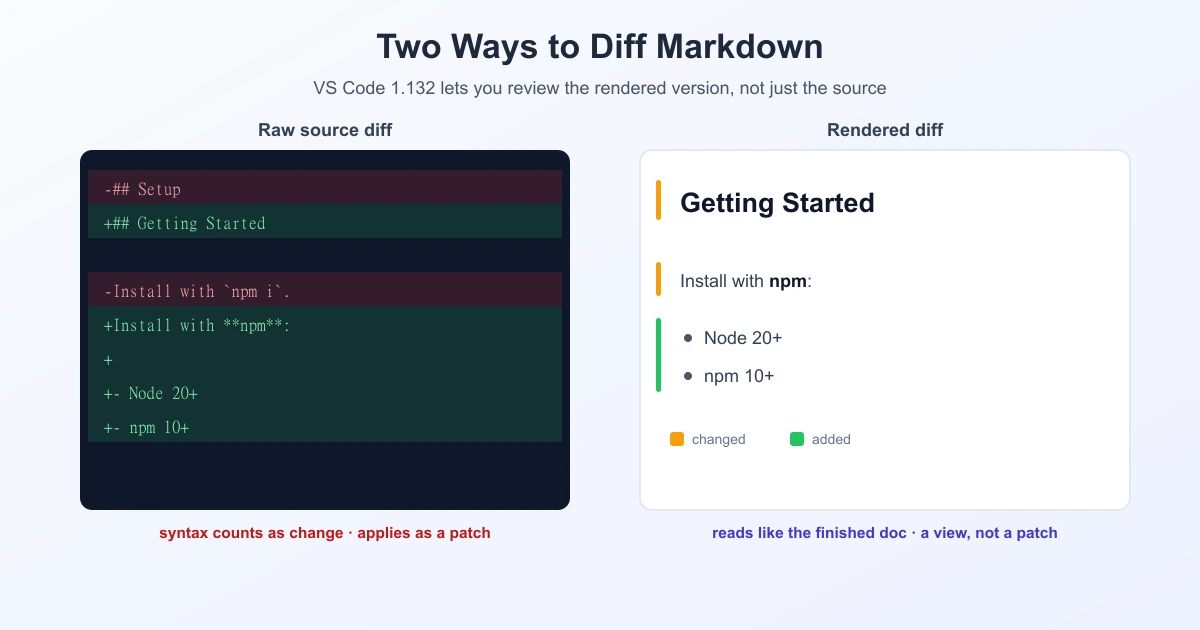
Diffing the source compares what the file literally contains: asterisks, brackets, link syntax, table pipes. It is exact and it is what a patch needs. But a change like turning a paragraph into a bullet list produces a wall of symbols that hides what actually changed for the reader.
Diffing the rendered output compares what a person sees: the heading, the list, the bold phrase. It reads naturally, but it is no longer a literal record of the file, so you cannot apply it as a patch.
| Raw Markdown diff | Rendered Markdown diff | |
|---|---|---|
| Compares | The characters in the file | What the reader sees |
| Best for | Code review, patches, exactness | Docs review, prose edits |
| Formatting noise | High — syntax counts as change | Low — syntax is invisible |
| Can be applied as a patch | Yes | No |
VS Code's answer is not to pick one. It keeps both and lets you switch — which is the sensible call, because the right view depends on whether you are reviewing writing or reviewing a file.
Who This Helps
Mostly the people who live in Markdown but are not primarily reading code:
- Technical writers reviewing documentation changes, where reformatting a table in the source looks dramatic and changes nothing for the reader.
- Anyone reviewing README or docs pull requests, where the question is "does this read correctly now?" rather than "which characters moved?"
- Teams reviewing AI-generated documentation, which tends to rewrite formatting freely and produces noisy source diffs.
For code review it changes little — a raw diff is still what you want when precision matters.
What Happens Next
The Markdown diff view is experimental, so expect it to shift before it becomes default behaviour; the custom-editor diff priority is still a proposed API, which means extension authors can try it but should not depend on it yet. If it holds up, the interesting question is whether the same treatment spreads to other rendered formats — notebooks, rich text, and HTML have exactly the same source-versus-output problem.
The Same Problem, Outside VS Code
This tension is not new, and it is not limited to one editor. Any format that has a source and a rendered form faces it. HTML is the classic case: two pages can look identical while their markup differs completely, and vice versa. It is why comparing a document's text and comparing its markup answer different questions.
Underneath, the mechanics are unchanged. Whatever the view, some algorithm still decides which lines or words count as changed — by default Myers, with patience and histogram for cleaner alignment in code — and the unified diff format is how that result gets written down. A rendered view changes the presentation, not the comparison.
If you want the plain version of this without installing anything, you can compare text online and paste either the raw Markdown or the rendered text, depending on which question you are trying to answer.
Frequently Asked Questions
What is the new Markdown diff in VS Code?
It is an experimental feature in VS Code 1.132 (5 August 2026) that shows changes inside the rendered Markdown editor. Gutter indicators mark added, changed, and deleted content, and the modified document stays editable while you review.
How do I switch between the text diff and the Markdown diff?
Use the editor type dropdown to switch between the plain text diff and the Markdown editor with diff annotations. VS Code 1.132 also adds a breadcrumbs.showEditorType setting so you can switch editor types from the breadcrumbs.
What is the difference between a raw and a rendered Markdown diff?
A raw diff compares the characters in the file, including Markdown syntax, and can be applied as a patch. A rendered diff compares what the reader sees, so formatting syntax does not create noise — but it is a view, not a patch.
Is the Markdown diff feature stable?
No. It is experimental in VS Code 1.132, and the related custom-editor diff priority is a proposed API. Both may change before they become default behaviour.
Does this change how VS Code computes diffs?
No. It changes how the result is displayed. The underlying comparison still works the same way — an algorithm decides which content changed, and the view decides how you see it.
Should I use a rendered diff for code review?
Generally no. For code and patches, the raw text diff is the precise record you want. Rendered diffs are better for documentation and prose, where formatting syntax gets in the way of reading the actual change.
Sources
Related Reading
Compare Markdown, Code, or Plain Text
Paste two non-sensitive versions and inspect word-level changes without signing up.
Try TextCompareo